About
Have you ever started editing a report and found yourself asking: "What does this field name stand for?"
To find that out, you have 2 options:
- Check the filed description in your Salesforce Object Manager
- Download the Precursive PSX Data Dictionary below
How to Check a Field description in the Salesforce Object Manager
If you are unsure on what a field stands for or how that is calculated,
you can check its description in the Salesforce Object Manager. To do that:
- Navigate to the Salesforce Setup (gear icon, top right)
- Go to the ‘Object Manager’ tab
- Look for the Object where the field is located & click on it
- Select ‘Fields & Relationships’ (column on the left)
- Look for the Field you want to check & click on it
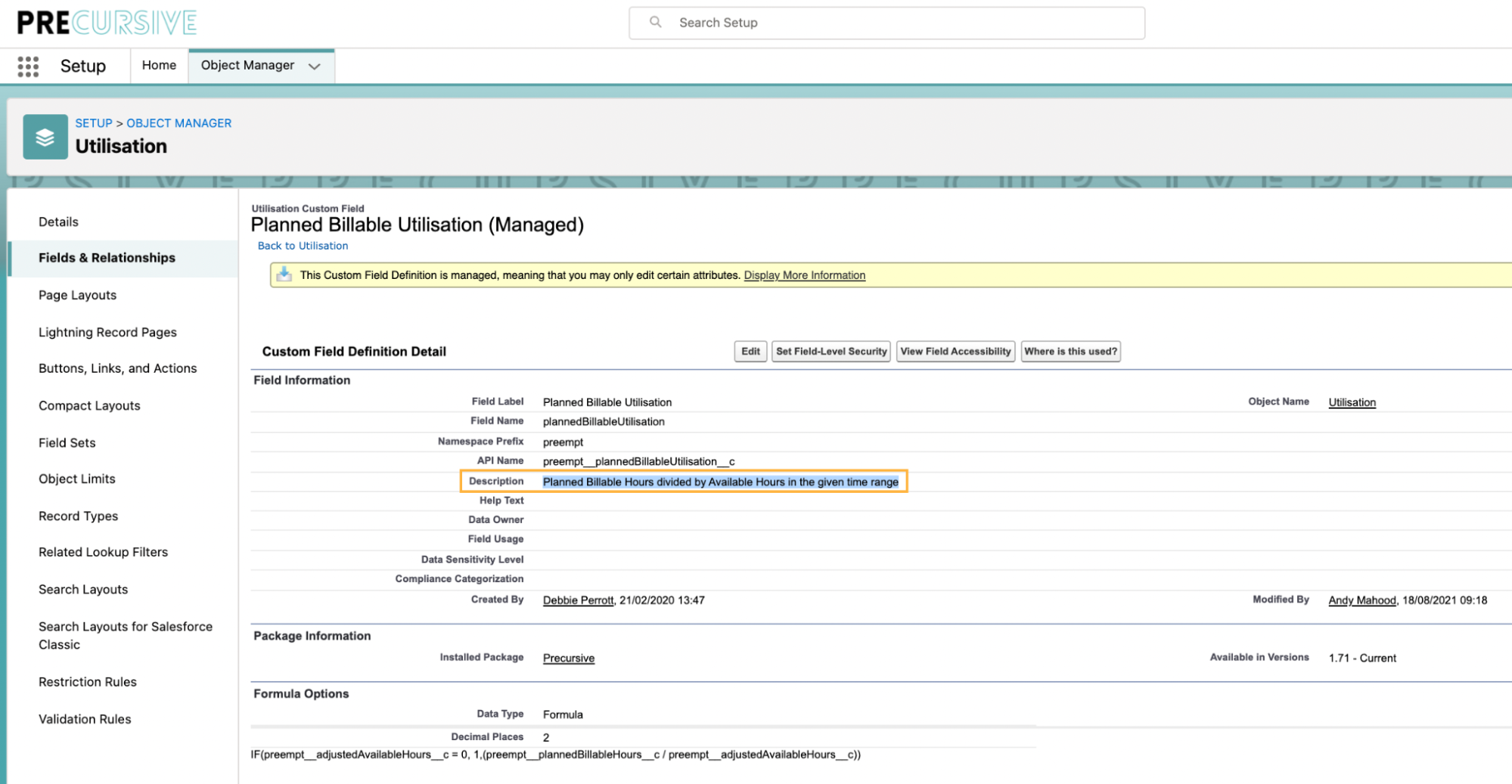
- Check the ‘Description’
For Example - if you wanted to learn more about how the ‘Planned Billable Utilisation’ field on a Utilisation report is calculated, you’d navigate to the Utilisation object and select the ‘Planned Billable Utilisation’ field in Fields & Relationships to check its description: “Planned Billable Hours divided by Available Hours in the given time range”
However, if you cannot find the information you are looking for, you can also download our Data Dictionary and walk through the available tabs to find the information you are looking for.
A Data Dictionary for Precursive PSX version 1.83
Here you can find a full Data Dictionary for Precursive PSX version 1.83. Please check the tabs at the bottom to find the object you want to check a field description for: on each time you will find a list of field with specified:
- API name
- Label
- Field Type
- Field Description
Related Resources
Precursive Projects - Reports & Dashboards


