The Tasks cards appear in the order in which they were added to the List, or can be defined using Task Templates.
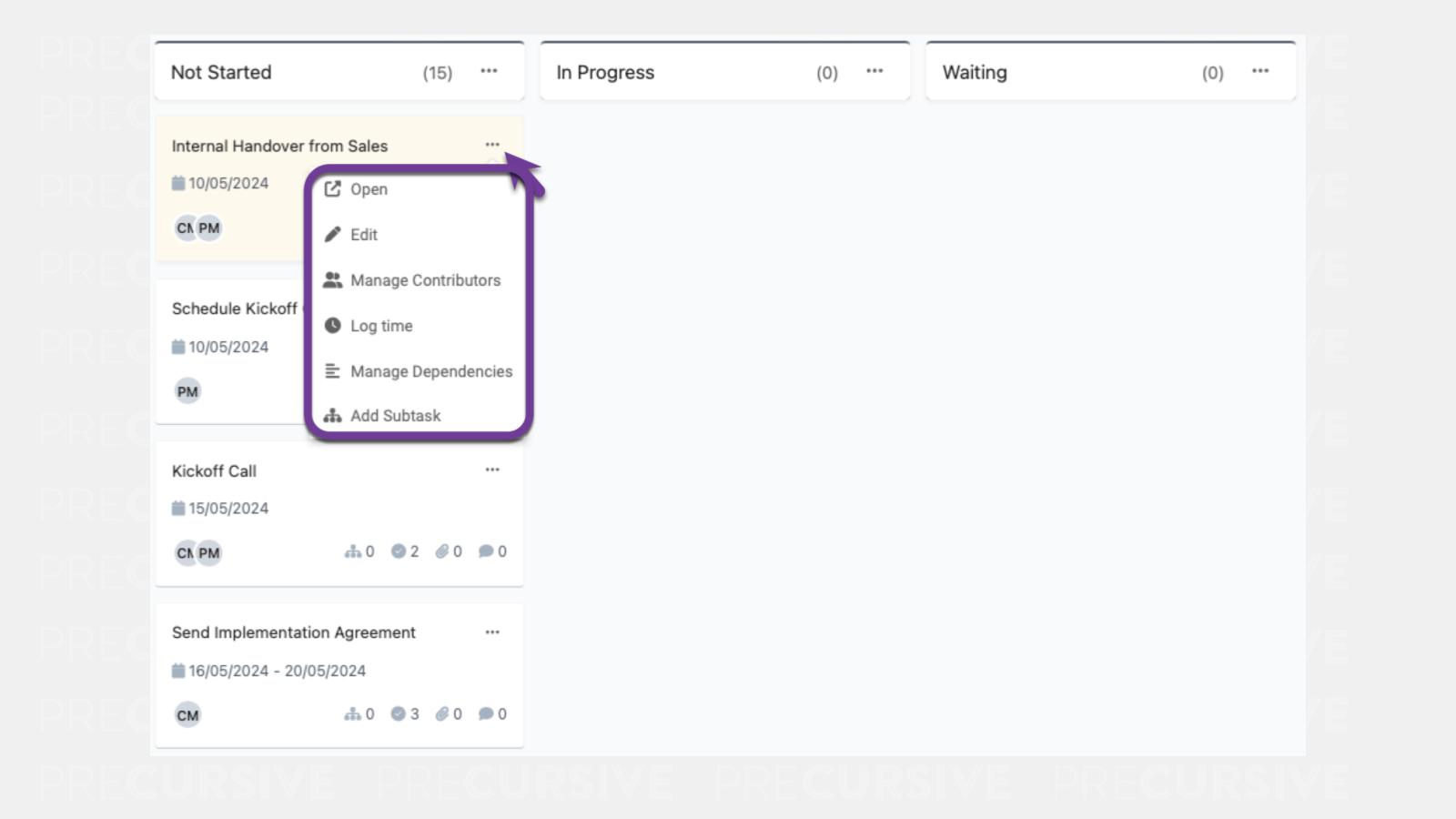
With this view you can perform the following actions ✅:
- Drag and drop Tasks to move them between different Lists
- Create bespoke Lists to suit your needs
- For each Task card:
- Open
- Edit
- Manage Contributors
- Log Time
- Manage Dependencies
- Add Subtask
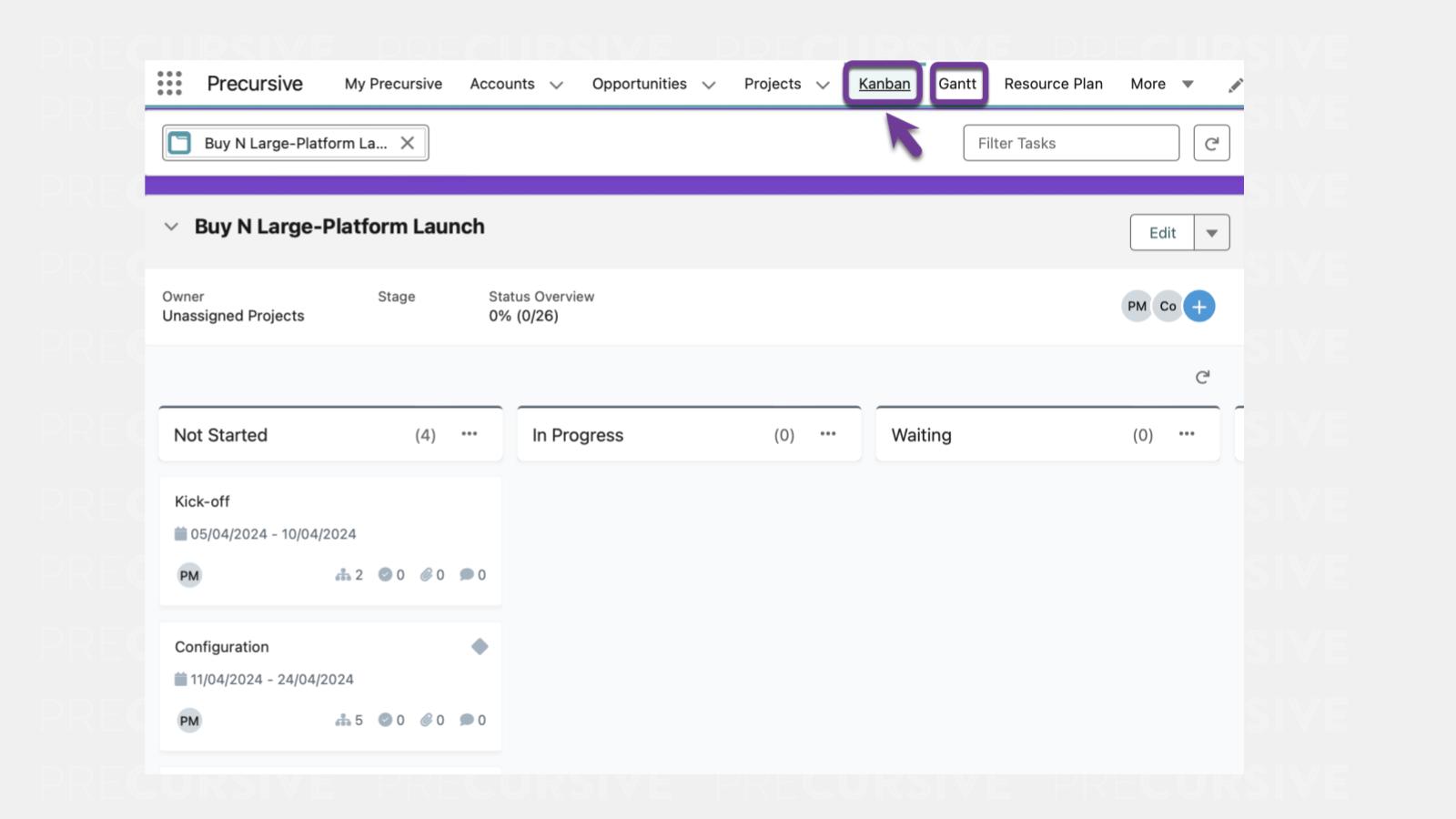
Primary Tab
Quickly access your Project Kanban from the Primary Tabs.
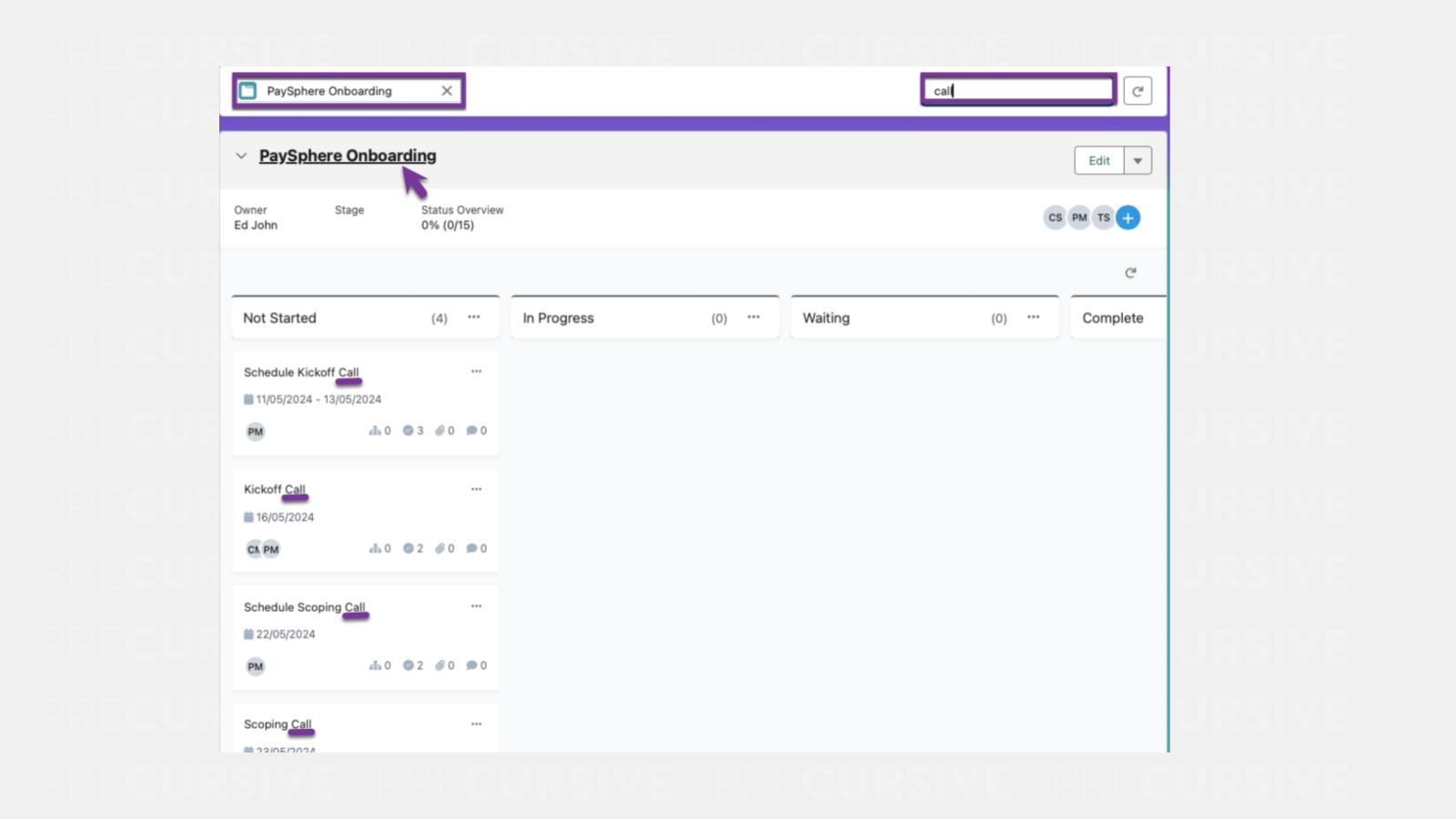
In the Kanban Primary Tabs, you can ✅:
- Search and easily navigate to recently viewed projects
- Filter Tasks in the upper right corner to search for keywords across the List of Tasks
- Navigate to the Phase Level of the Project by clicking on the Phase name
NOTE: Your Salesforce Admin can customize the fields in the Phase Header section. To update these fields, go to Setup, navigate to Object Manager, select Phase, then Field Sets, and choose Phase Header. From there, pick the fields you want to appear in the Phase Header.
Kanban Card
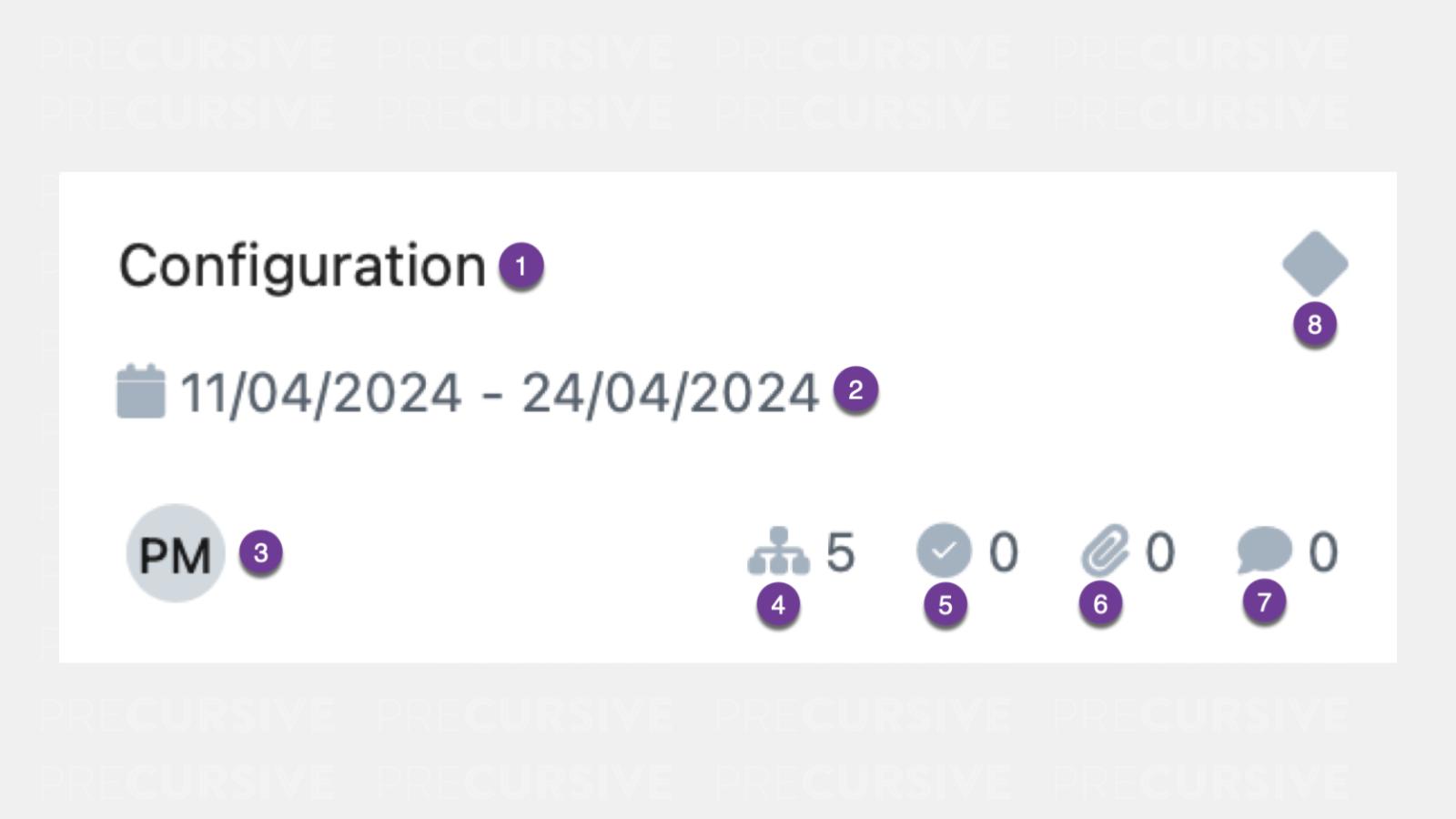
Each card on a Kanban sheet has several features that enable easier navigation. Take a look at these features in the image below.
1. Name
2. Start & End Date
3. Contributors
4. Subtasks (clicking this will drill into the subtasks)
5. Checklist
6. Files
7. Comments
8. Milestones (only visible when Milestone is assigned)