Magic Assign is the perfect companion for those already using Task-based resourcing.
It automates the time-consuming task of searching Resource plans to find availability through whitespace. Filtering capabilities allow you to narrow the list of Resources before making assignments, reducing noise in larger organisations. Magic Assign helps quickly find the best match Resource to assign to a Role or even individual Project Task.
How to Access Magic Assign
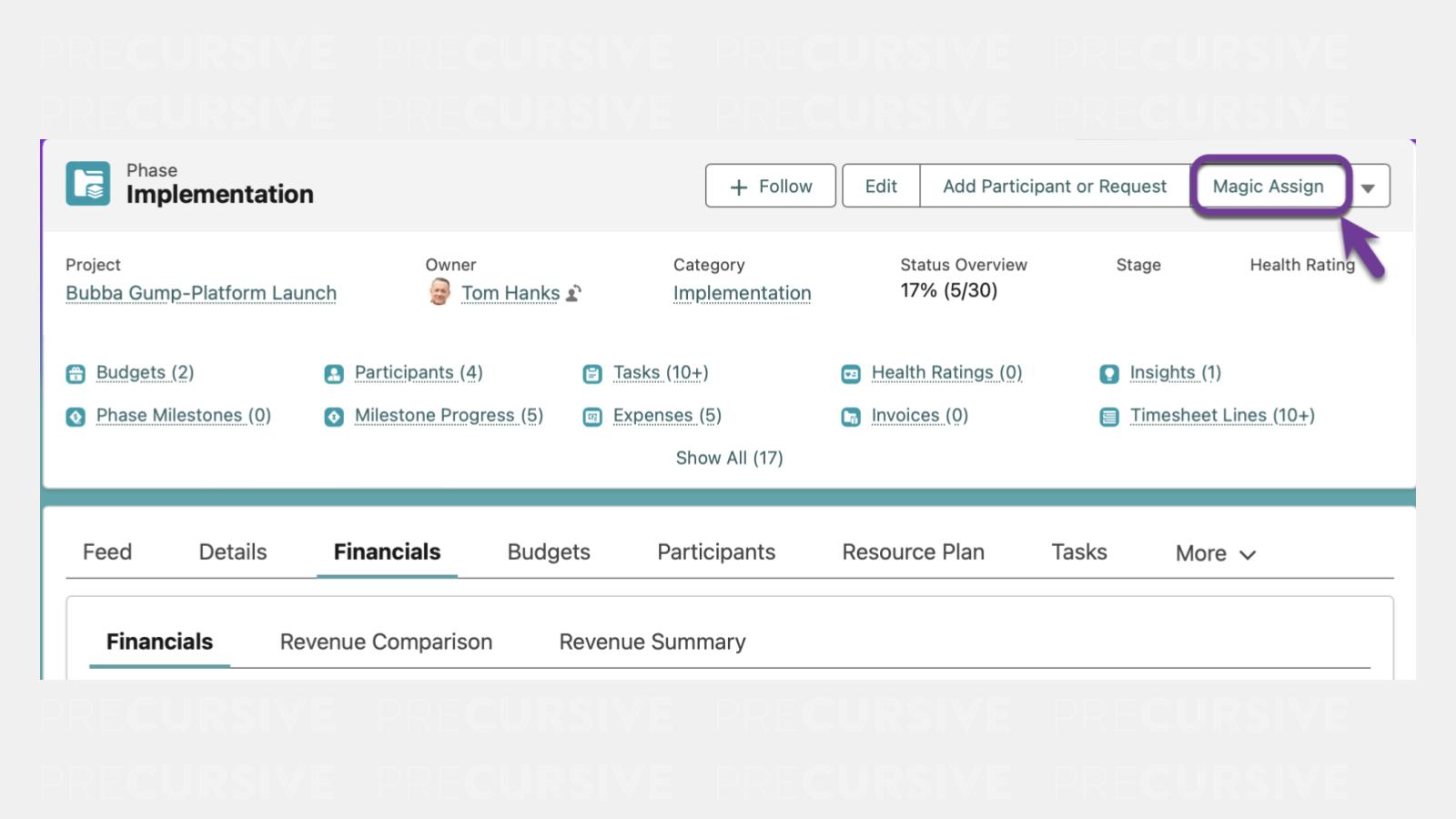
To access Magic Assign, navigate to the Phase level of a Project, and click the button in the upper-right corner.
Magic Assign can be used for both the initial assignment and for reassignment. Reassignment is applicable in cases where a Project is rescheduled at any point, and Magic Assign can be used to confirm availability and reassign specific tasks.
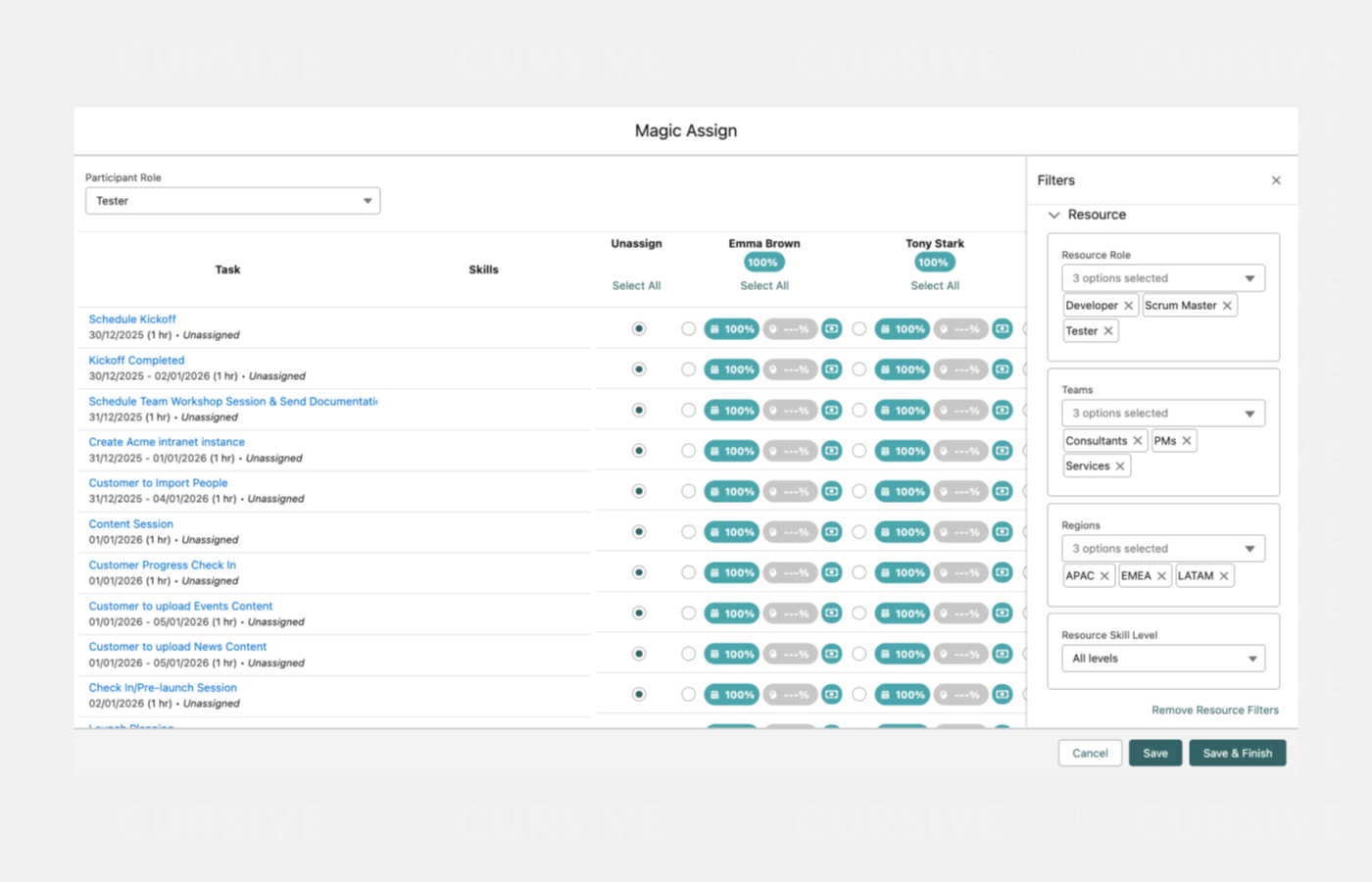
This opens up a new window from which you will be able to see all Tasks on the current Phase, as well as the Resources who can be assigned to those Tasks. You can optionally filter Resources by Resource Role, Region, Team, and Skill Level to focus on specific delivery groups or geographies.
Participant Role Filter
To start, you will need to choose the Role to assign, which can be done in the upper-left corner, e.g. Consultant or Project Manager. Magic Assign will calculate who the best fit is based on their Availability, Skill, and Cost.
Resource Role Filter
The Resource Role Filter allows you to narrow the list of available Resources based on their assigned Role. While Participant Role focuses on identifying Tasks that require a specific Role, the Resource Role Filter focuses on which Resources can fulfil that Role.
When a Resource Role is selected, Magic Assign shows only Resources who hold that Role, making it easier to identify suitable candidates for assignment. This is especially useful in organizations where Resources may have multiple roles or where large Resource pools need to be filtered before reviewing Availability, Cost, and best-fit scores.
Teams and Regions Filters
The Teams and Regions filters allow you to limit the list of available Resources based on your organizational structure. These filters are narrowing the Resource pool before assignments are made.
When applied, Magic Assign displays only Resources that belong to the selected Team or Region. This helps ensure assignments align with delivery groups or geographic constraints, while still using Availability, Skill, and best-fit scoring within the filtered set.
Resource Skill Level Filter
In Magic Assign, you can filter by Skill level, which will show you the most ideal Resource for the Task. Once you select a Skill level, Magic Assign will recalculate and the best matched Resource will appear first.
Selecting a Skill Level will only match Resources to that Skill where their Skill Level is equal to or higher than the one selected.
Resource Best Fit Indicator
The Resource Best Fit % is weighted based on the scores across Ability and Skill. This is used to provide a single ranking for the Resources fit for all Tasks. This is used to order the Resources so that the best fit is always shown first.
Resource Availability, Skill and Cost Indicators
Availability
The Availability displays as a percentage and indicates how much of the Task the resource has capacity for. If the Task is not yet scheduled, you will see a gray label.
E.g. The Task is planned for 16 hours over 3 days. This resource is only available for 12.4 hours across those same three days which is calculated at 78%.
Skill
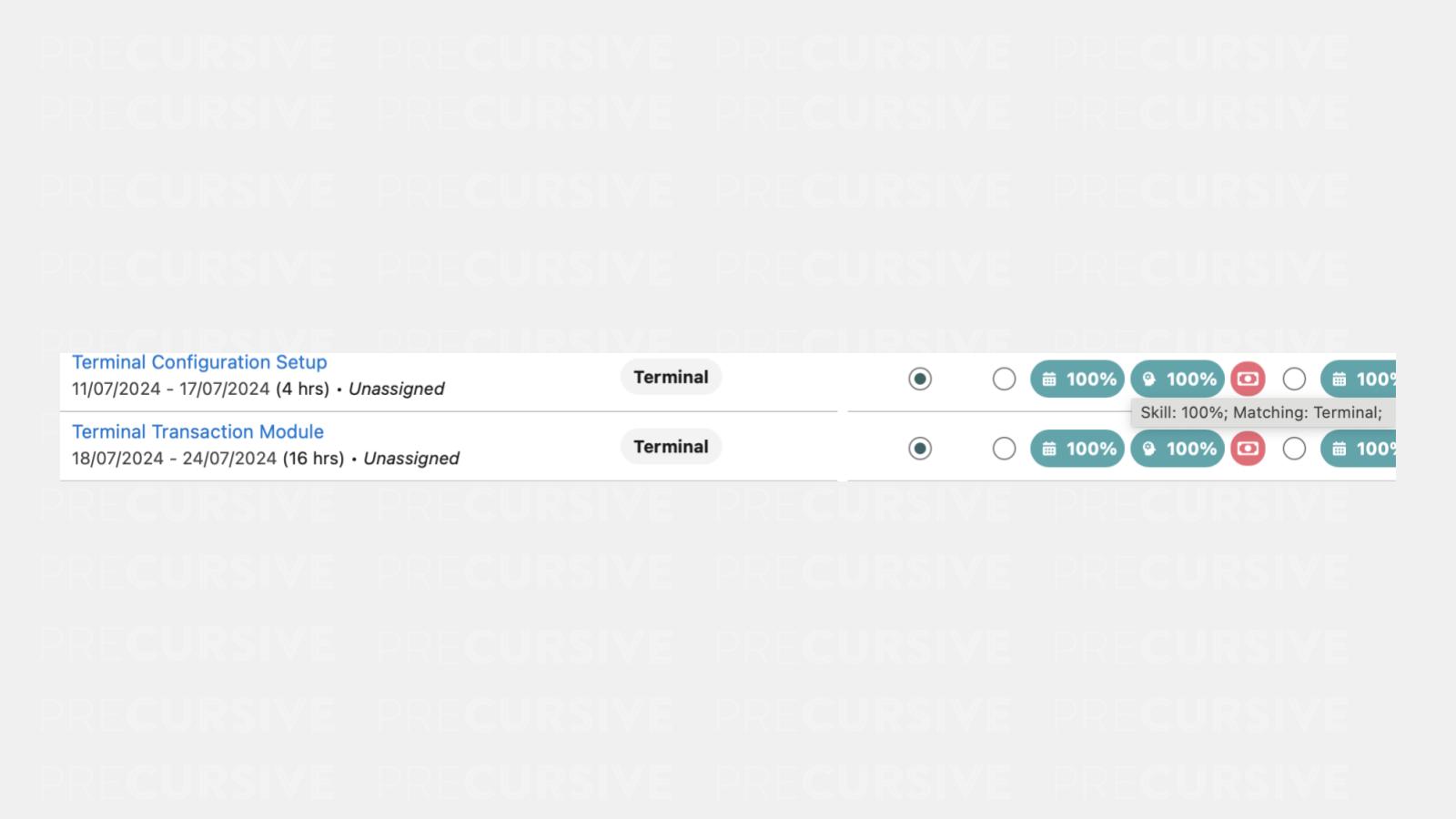
The Skill indicator reflects the percentage of the Skill Requirements for that Task that the Resource meets that are of the same level as the “Resource Skill Level”. Skill Requirements that are defined on the Task can be shown on Magic Assign. These can be set on the Template, or they can also be added manually.
E.g. If the Resource “E-commerce” is Level 2, and the “Resource Skill Level” was set to Level 3, then Magic Assign will only attribute the value of the Skill for Resources with Level 3 and above.
If a gray indicator is displayed, this means that the Task does not have any Skill Requirements.
-
Cost
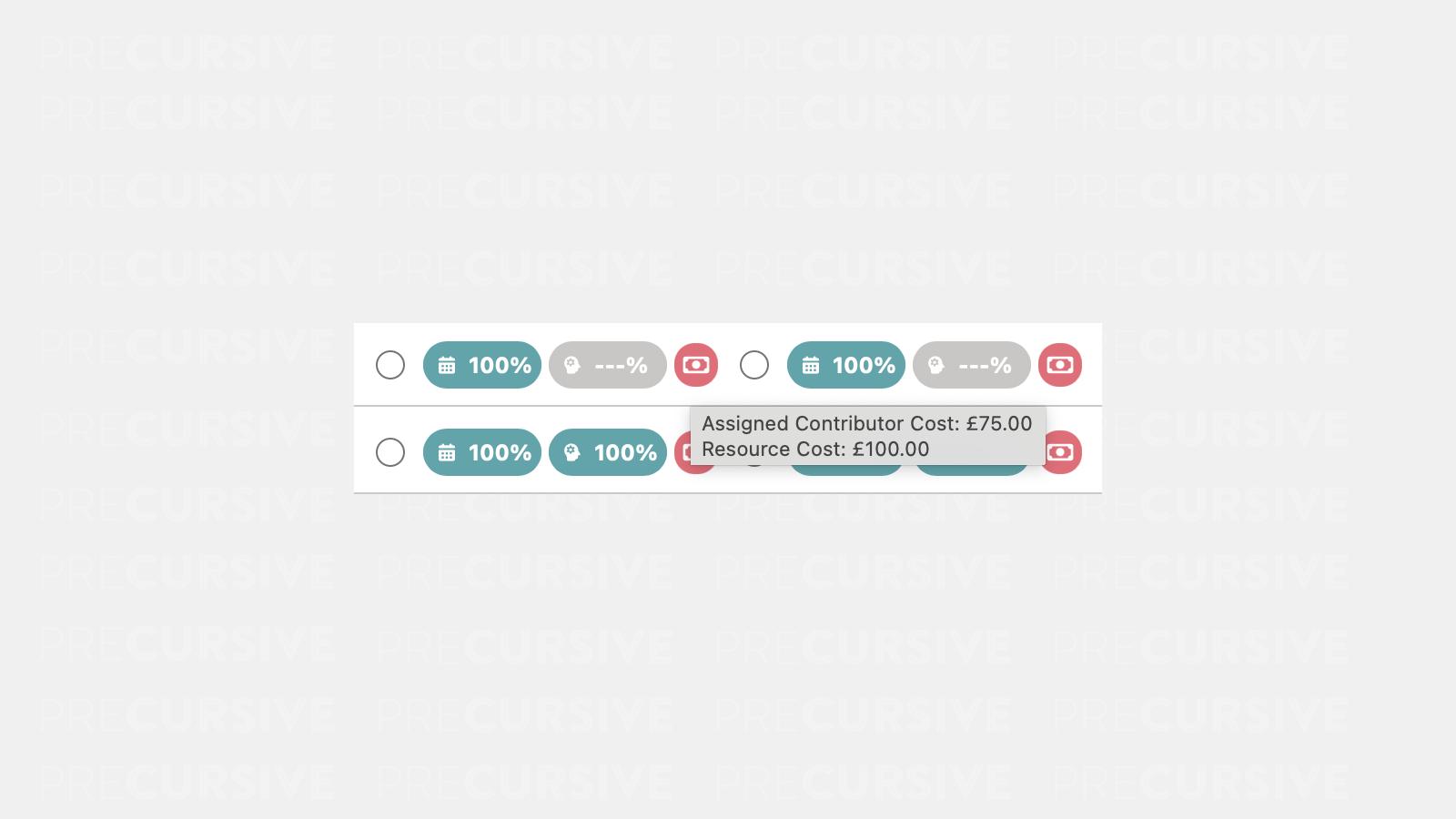
The Cost is an indicator to inform you if the Resource will add more costs to the Project. If the Cost indicator is Pink, then this means that the Resource has a higher cost.
The Cost compares the Resources cost to the currently assigned Resources cost. If no one is assigned, then the blended cost is defined against the Role. The Cost does not contribute to the overall Resource weighting percentage.
Assigning Tasks
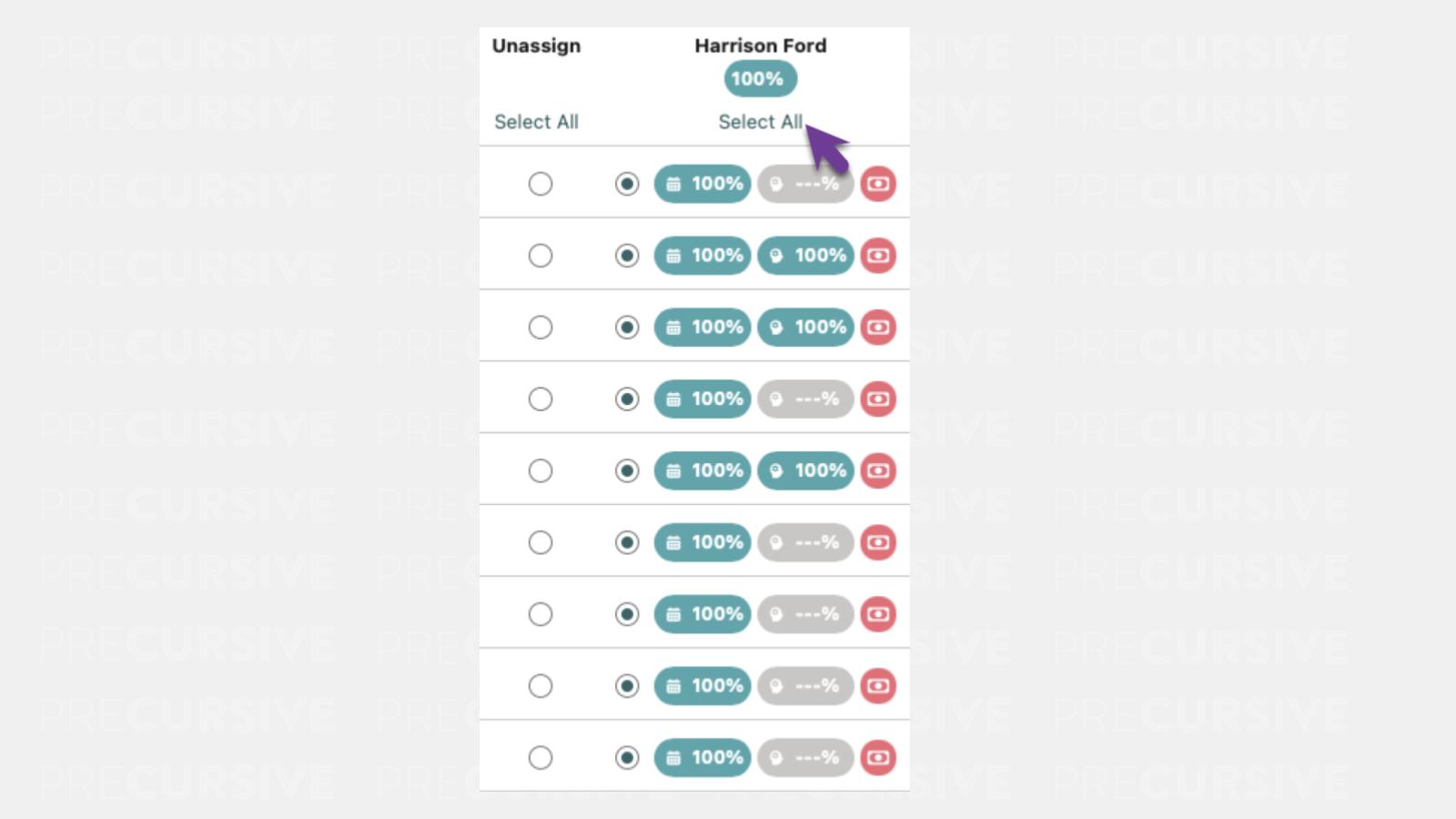
Tasks can be reassigned in an instant and can be done both individually and collectively. Applying filters helps ensure Tasks are assigned to Resources from the appropriate delivery group before confirming assignments. The “Select All” button under each Name enables you to assign all Tasks to a single person in one go, which will immediately add bookings to the resource plan. Alternatively, select the checkbox in the vertical list below each name to assign Tasks individually.
Magic Assign can be visited as many times as needed throughout the course of the Project. When using Task-based resourcing, the changes made are immediately reflected in the Resource Plan.


