Tasks Popover for Bookings in the Resource Plan
Highlights
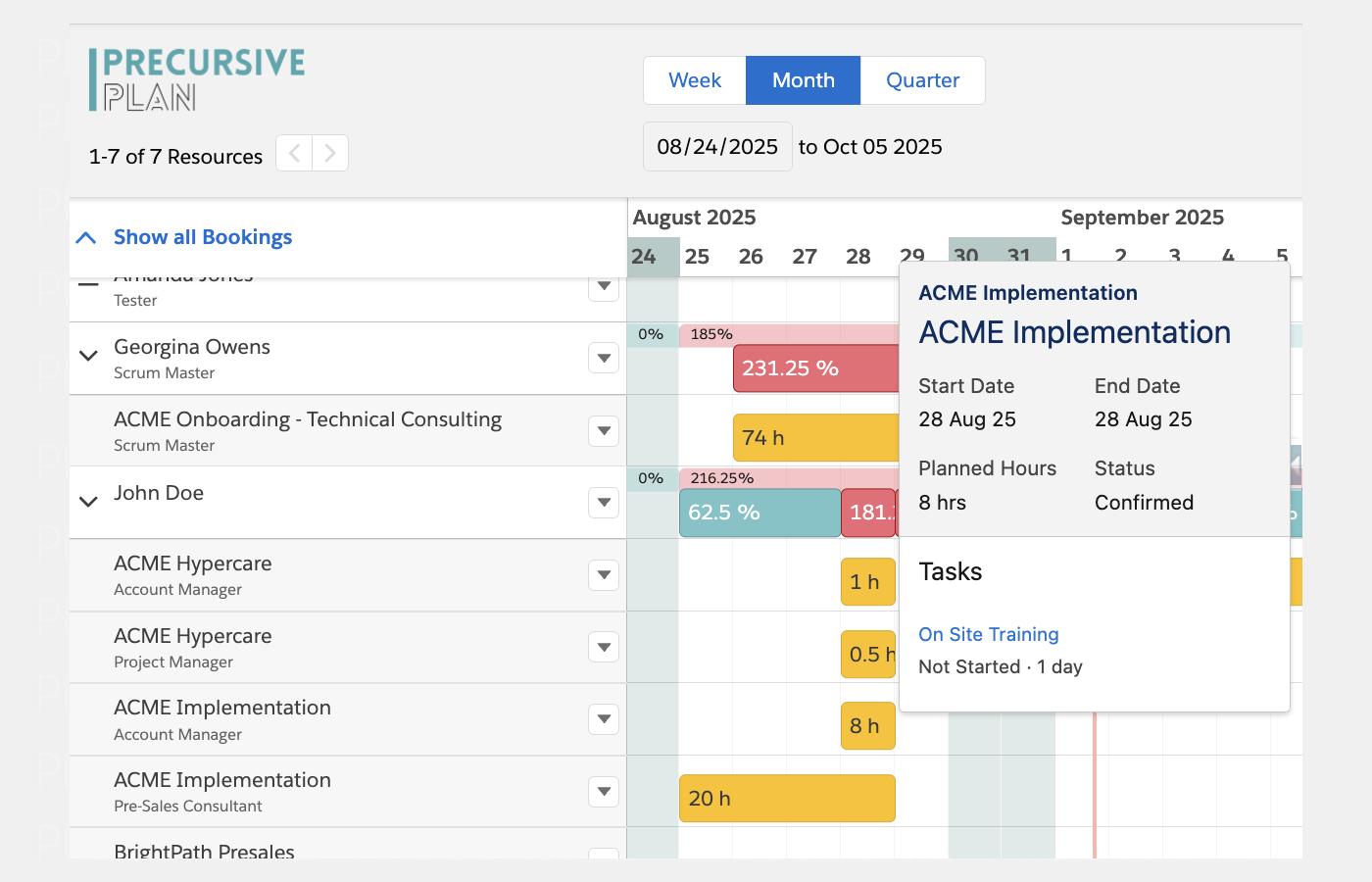
Hovering over a Booking in the Resource Plan now displays a popover showing the Project, Phase, dates, Planned Hours, and the list of Tasks that make up that Booking — giving you immediate context without leaving the page.
What Changed
Previously, there was no way to see which Tasks were behind a Booking directly from the Resource Plan. You would need to navigate into the Project or Phase to understand what work was driving a particular Booking. The Tasks popover brings that context directly to the Resource Plan view.
How It Works
- Hovering over a Booking opens a popover showing the Project name, Phase name, Booking Start and End Dates, Planned Hours, and Status
- Below the Booking details, a scrollable list shows all Tasks that make up that Booking, each with the Task name, list name, and duration
- Task and Project names link directly to their records, opening in a new tab
- If no Tasks are found — for example, because Tasks were rescheduled after the Timesheet was submitted — the Tasks pane displays a message to indicate this
Enablement Guidance
No manual steps necessary.
Time Log Comments on Activities
Highlights
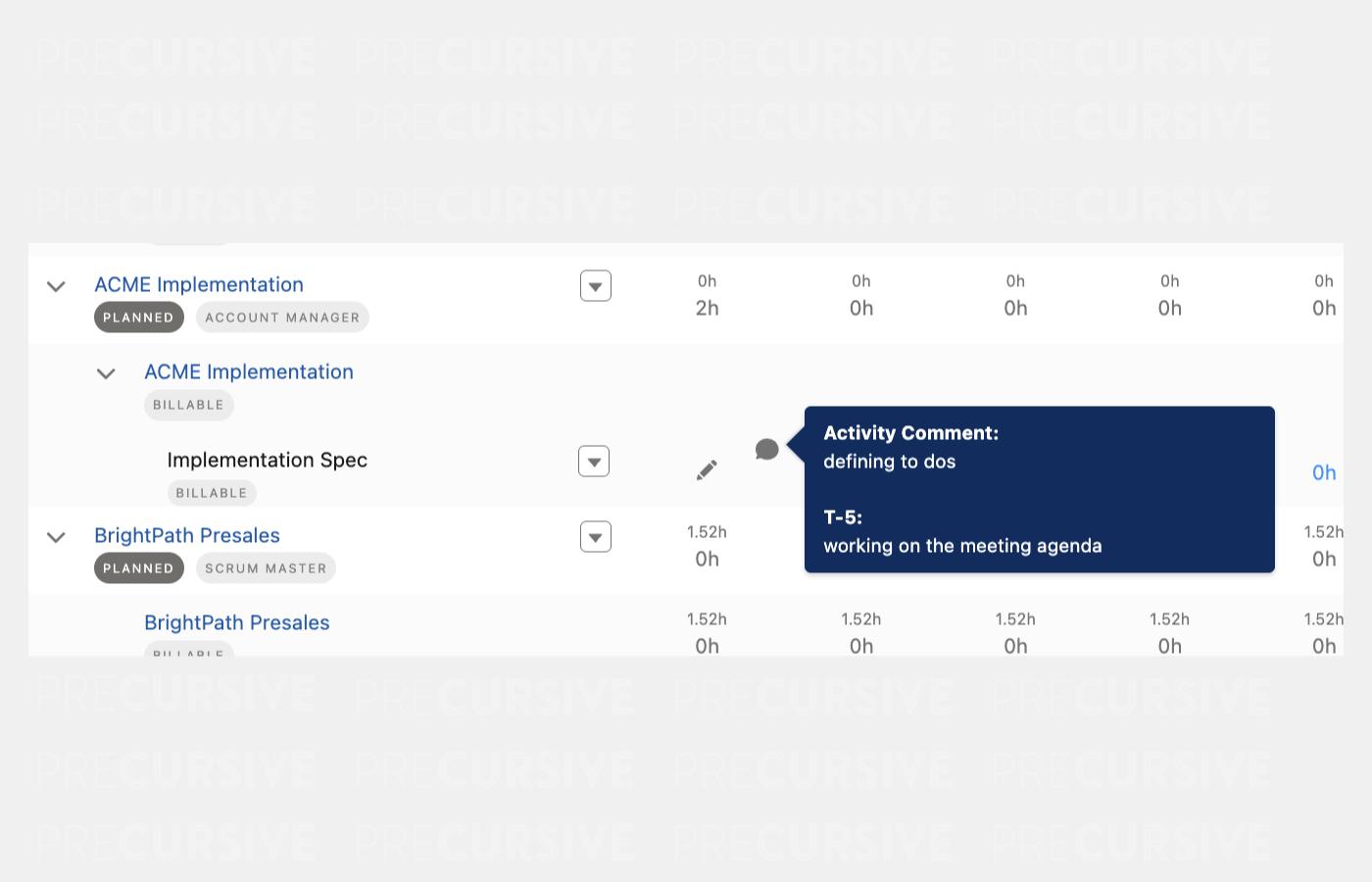
Comments added when logging time on Tasks are now aggregated onto the related Activity on the Timesheet, making them visible to Approvers during the Timesheet review process.
What Changed
When team members log time against Tasks, they can add comments to capture context about the work done. Previously, these comments were only visible on the Time Log record itself and were effectively lost by the time a Timesheet reached an Approver. A new Time Log Comments field on Activities now aggregates these comments, surfacing them during Timesheet review so Approvers have the context they need.
How It Works
- Time Log comments appear on the related Activity in the Timesheet, ordered from newest to oldest
- Up to 5 Time Log comments are displayed per Activity; if there are more, a note indicates the total number
- If an Activity also has its own comment, that is shown at the top, above the Time Log comments
- Time Log records are now linked to their related Activity via a new lookup field, making it easier to verify that synchronisation between Time Logs and Activities has completed correctly
Enablement Guidance
No manual steps necessary.
- The Time Log Comments field is populated automatically going forward — no configuration is required
- The new Activity lookup field on Time Log records is added via post-install and does not require manual setup
Data Model
No changes in the Data Model in 1.27 release.


