Project Budgets solves the challenge of tracking a Phase’s Budget where changes are made through the course of the Project, e.g. Chance Requests, Upsells, Rework etc. As the scope of the Project changes, you may need to add an additional bucket of effort, at a fee, or free of charge. Using budgets ensures that these changes are accounted for, and utilization data is correct.
When to Create Budgets Manually and When to Use Automation
Use cases for adding a budget using automation:
- Your organization is delivering productized services which are defined as Salesforce Product.
- You have regular services where Budgets may need to be created either once or repeatedly over defined periods.
Use cases for manually adding a budget:
- A change request has been approved to add additional hours/days of budget to the Project.
- Additional effort is required to complete work based on an internal issue (e.g. bug or issues with the product).
- You sell services at variable quantities and want Budgets to reflect each unit sold or scale with the quantity purchased
Budgets Roll up to Project and Phase
The Phase level shows all of the current Budgets in Hours and Fees. You can add a new Budget by clicking ‘New’ above your current Budgets. Doing so will display a window where you can name your Budget and set it against the Project of your choice. The Budget Details section enables you to set the Hours, Days and Fees.
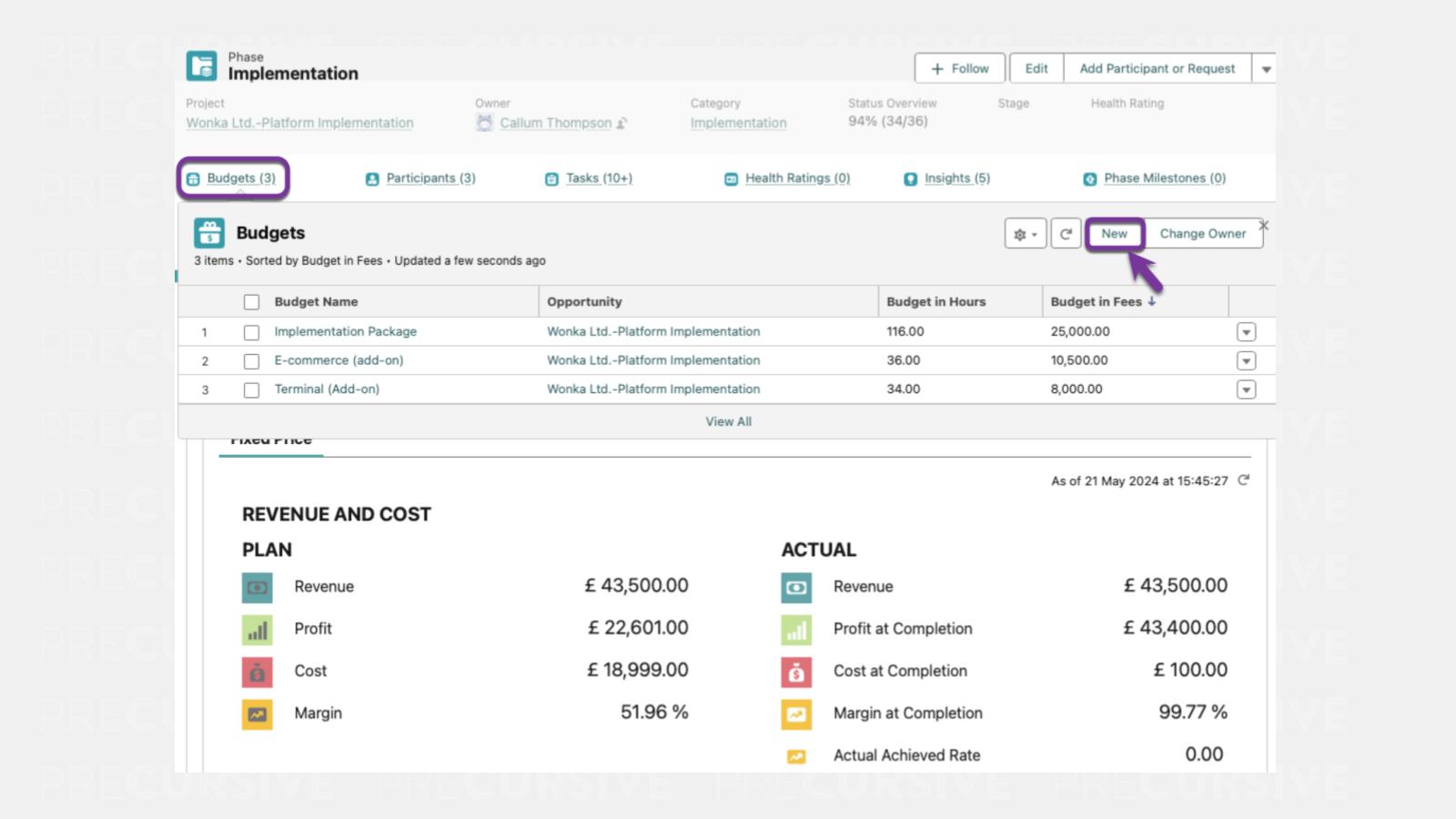
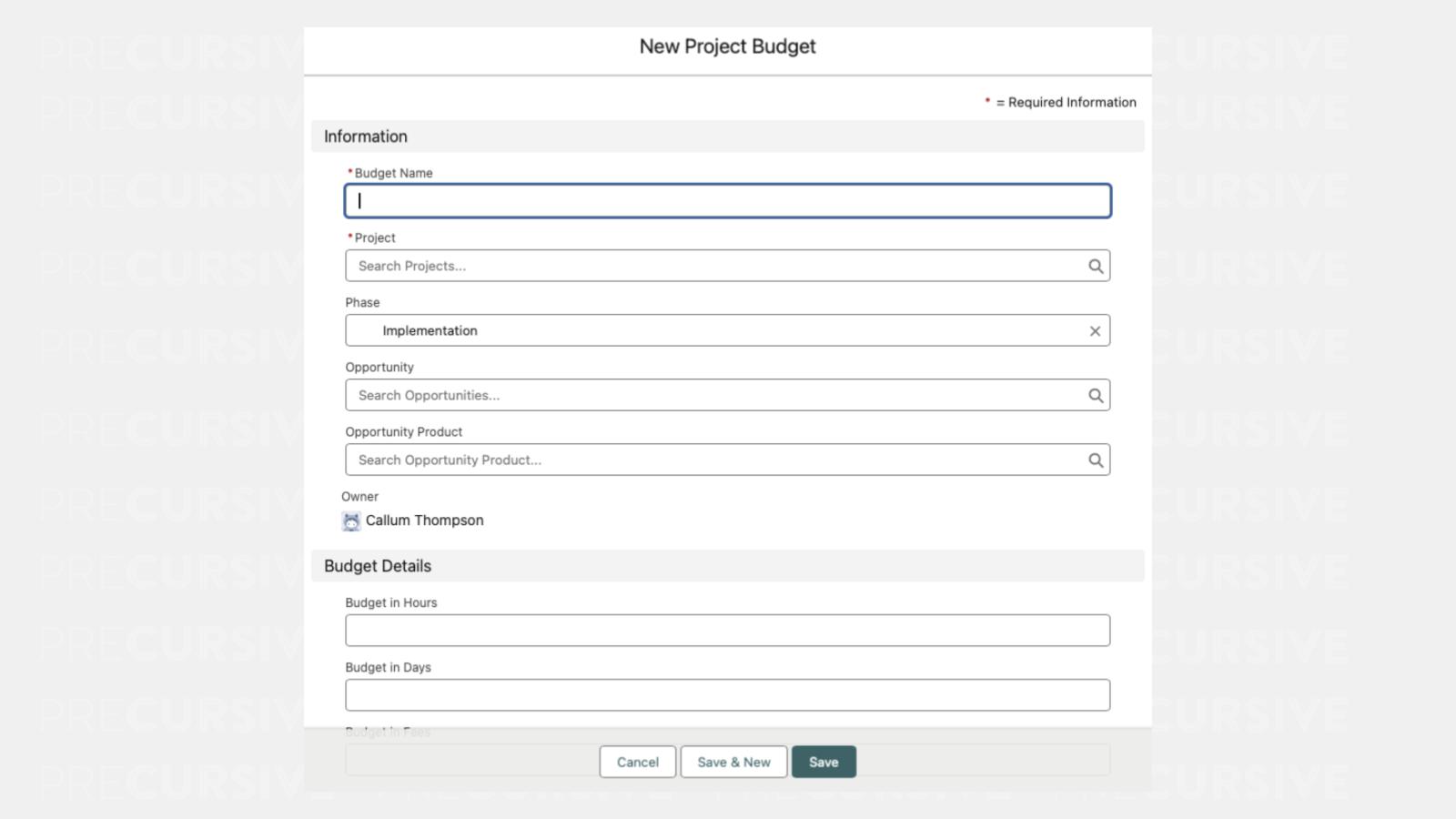
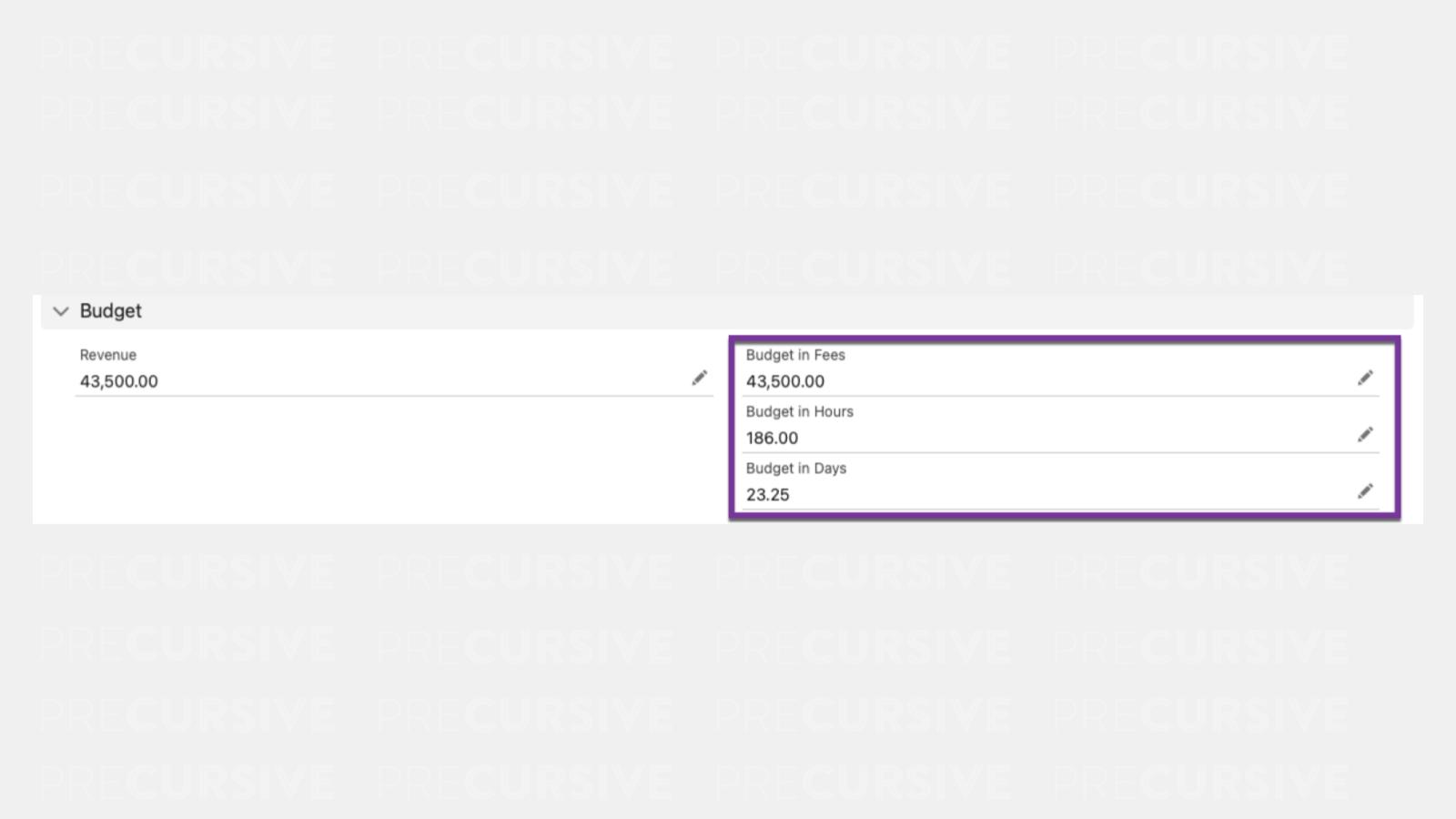
Adding or amending a Budget will automatically aggregate the values onto the Phase and Project in the fields ‘Budget in Hours’, ‘Budget in Days’, and ‘Budget in Fees’. When you have defined budgets you cannot directly override these values on the Project or Phase.
Expired and Cancelled Budgets
Project Budgets can be explicitly marked as Expired or Cancelled to reflect their lifecycle. This ensures accurate reporting, prevents over-consumption of budgets, and keeps rollups at the Phase and Project level clean.
Expired Budgets
-
A Budget is marked as Expired when its Expiration Date passes or when it is manually set to Expired.
-
Remaining Hours/Days are moved into the Expired Hours/Days fields.
-
Expired Budgets are automatically excluded from Phase and Project rollups. This applies to both one-off and recurring Budgets.
-
Expiration happens automatically via a nightly Apex job or can be triggered manually by changing the status.
Cancelled Budgets
-
A Budget can be set to Cancelled when work is stopped early (e.g. due to contract termination or scope change).
-
It is required to manually clear the Expired Hours/Days on Cancelled Budgets to prevent double counting in Phase-level rollups. This can be automated on triggers as well.
Automation
-
A nightly job automatically sets budgets to Expired if the Expiration Date has passed.
-
In Precursive HQ > Background Processes, a tile “Mark Expired Budgets” is available to track this process.
Reminder
Using the Expired and Cancelled statuses gives you additional control beyond just lifecycle tracking:
-
Expanded Reporting — filter or segment reports by Expired vs Cancelled budgets to understand unused allocations versus early-terminated work.
-
Stronger Validations — configure validation rules that prevent logging time on Tasks linked to Expired or Cancelled budgets, reducing errors and ensuring governance.
Add a Budget manually
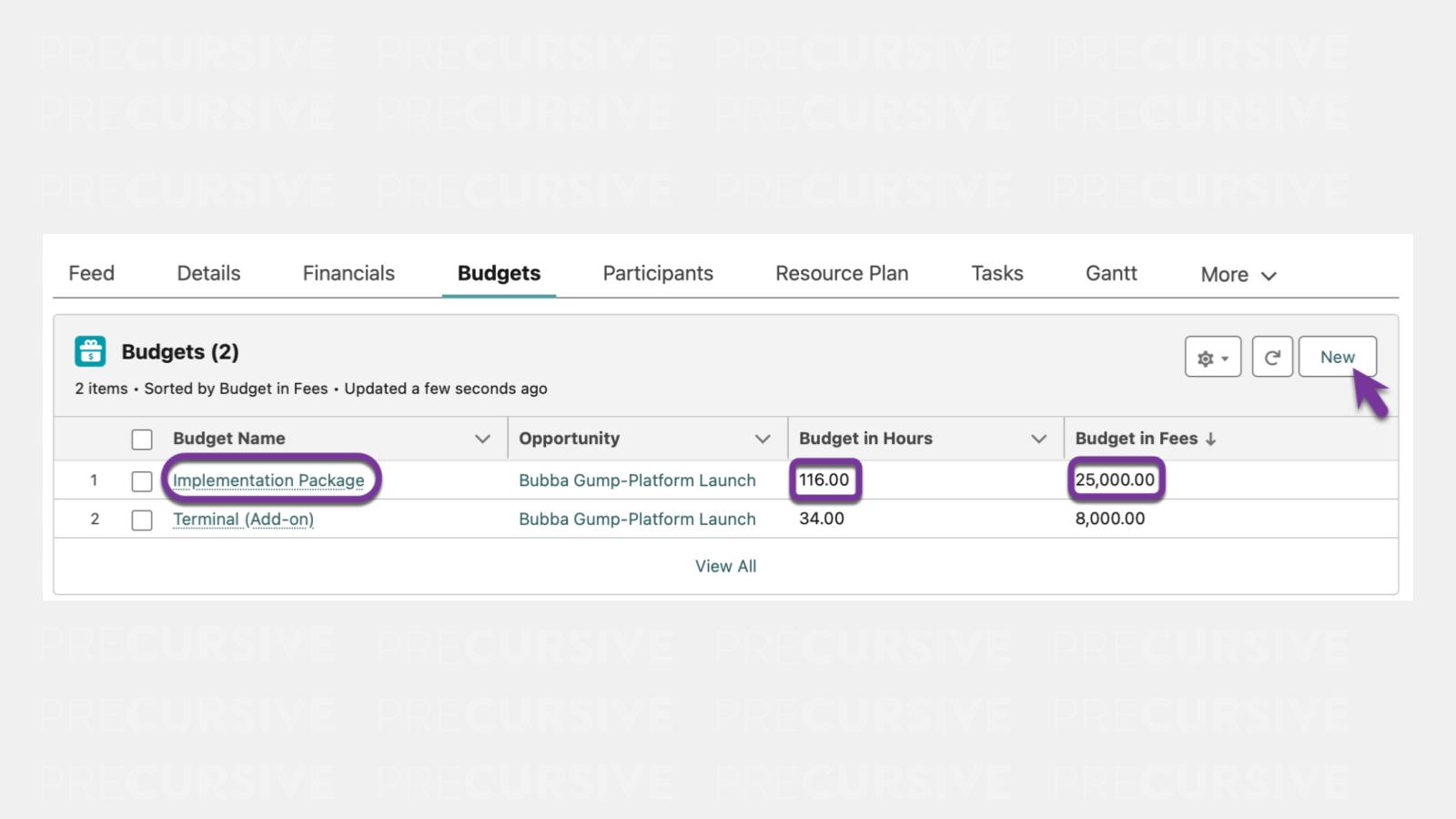
- From the Budgets tab at the Phase level, click New
- Add the following details:
- Budget Name [required]
- Project [required]
- Phase (pre populated)
- Opportunity [optional]
- Opportunity Product [optional]
- Budget in Hours
- Budget in Fees
Creating Project Phases and Budgets from Salesforce Opportunity Products
You can automate the creation of Projects and Budgets from Salesforce Opportunities and map over the relevant costs from Products in the Opportunity. Automation can support single Budget creation, recurring Budget creation, and Budget creation handling services sold at variable quantities - depending on how Products are configured.
When and Why is this necessary?
Packaged Services are often defined as Products in Salesforce, so when these services are sold, the Products are included in an Opportunity. Customers will aim to create the project automatically using the information already present on the opportunity, so these packaged services that are included in the opportunity will form the project.
By defining additional information on the Salesforce Product (e.g. Project Category), Precursive will use this information to create the necessary Budgets and Phases on a new Project - including importing Templates based on the Products from the opportunity.
Recurring Budgets
Recurring Project Budgets are an additional automation option for services that repeat over time, such as retainers or ongoing managed services.
When configured, Precursive automatically creates a separate Budget for each defined period. These Budgets behave the same as standard Budgets once created and participate fully in rollups, reporting, and lifecycle management.
Quantity Behavior
Quantity Behavior controls how the Opportunity Line Item quantity is applied when creating Project Budgets. This is configured on the Product using the Quantity Behavior field, which supports two options:
- Per Unit - creates a separate Budget for each unit of the Opportunity Line Item quantity. For example, if a Product is sold with Qty = 3, three Budgets are created (e.g. Training 1, Training 2, Training 3), each with its own imported Task Template suffixed to match. Task names are also suffixed with the unit index to distinguish tasks across Budget units.
- Scale - creates a single Budget with the Hours and Days multiplied by the quantity. For example, if a Product is sold with Qty = 5 and configured with 10 Budget Hours, one Budget is created with 50 Hours.
When Quantity Behavior is not set, the existing behavior applies - one Budget is created regardless of the Opportunity Line Item quantity.
1. Set-up Products for Project Budgets
For a Budget to be created we first need to define additional information on the Salesforce Product so Precursive will treat it as a services product that will impact how the Project is created.
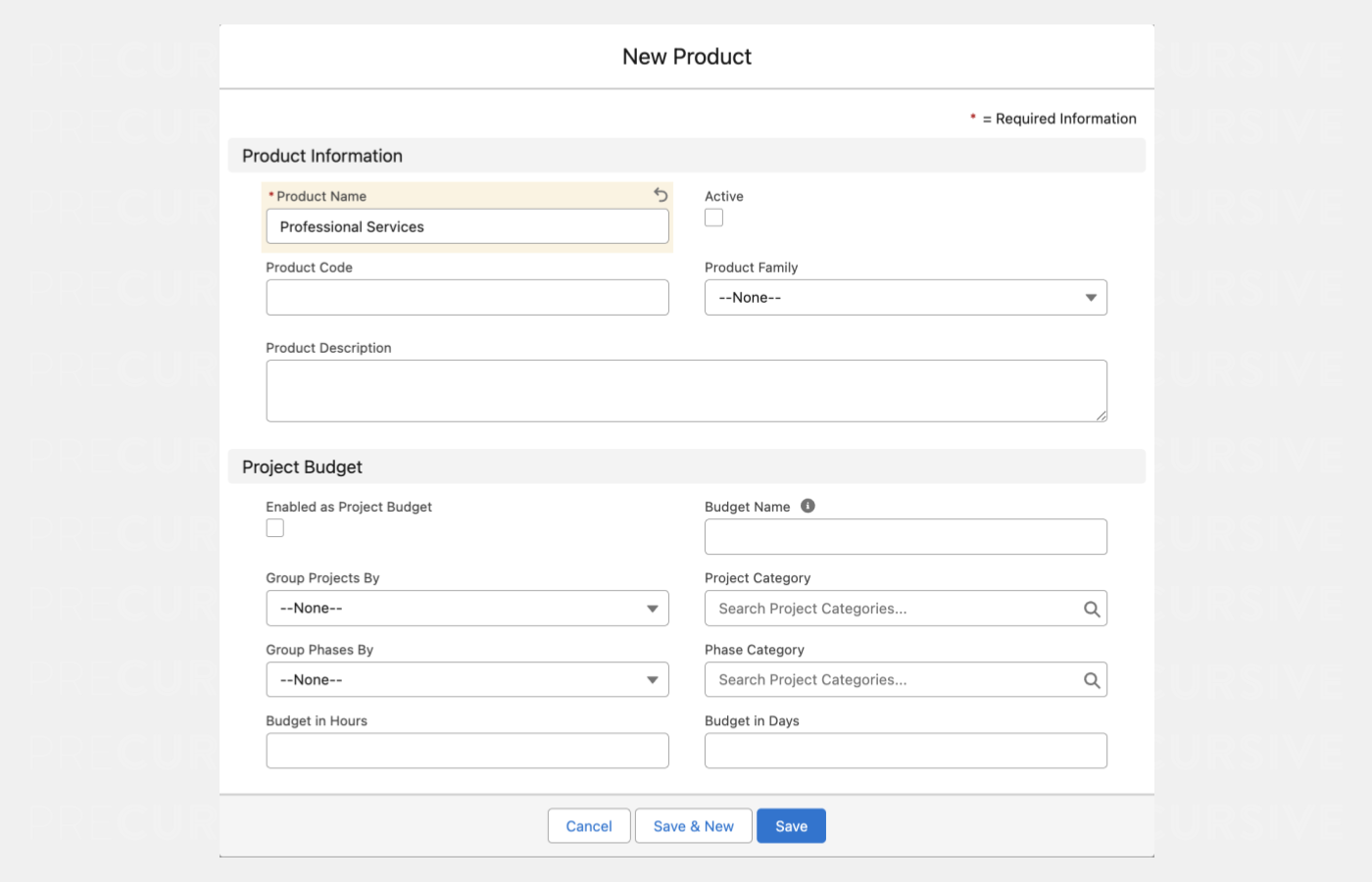
- Provide a Product name
- Check the Active box
- Check the Enabled as Project Budget box
- Select a Project Category to define the Project’s delivery method
- Provide a Budget Name. It allows overriding the default Product Name in automated budget creation
- Decide how to group Projects: Group Projects By
- Product - this will create a Project for each Product
- Project Category - Projects will be defined in the Project Category
- Select a Phase Category to define the Phase's delivery method
- Decide how to group Phases: Group Phases By
- Product - this will create a Phase for each Product
- Phase Category - Phases will be defined in the Phase Category
- Define Budget Period:
- One-Time - will create one Budget for the Product
- Monthly, Quarterly, Annual - will create recurrent Budget Period dependent on the selected value
NOTE: For Products that are using recurrent budgeting option, it is required to pass Term Start and Term End Dates to the automation.
- Define the Budget in Hours / Days. This value is used either to create a single Budget or, in the case of recurring services, as the per-period Budget value.
- Set the Quantity Behavior field if the service is sold at variable quantities (Per Unit or Scale). Leave blank to use existing behavior
2. Attach a Task Template to the Product
You can create and attach specific Task Templates for each Product. As Products are sold together, multiple budgets will be created and each Template will be imported.
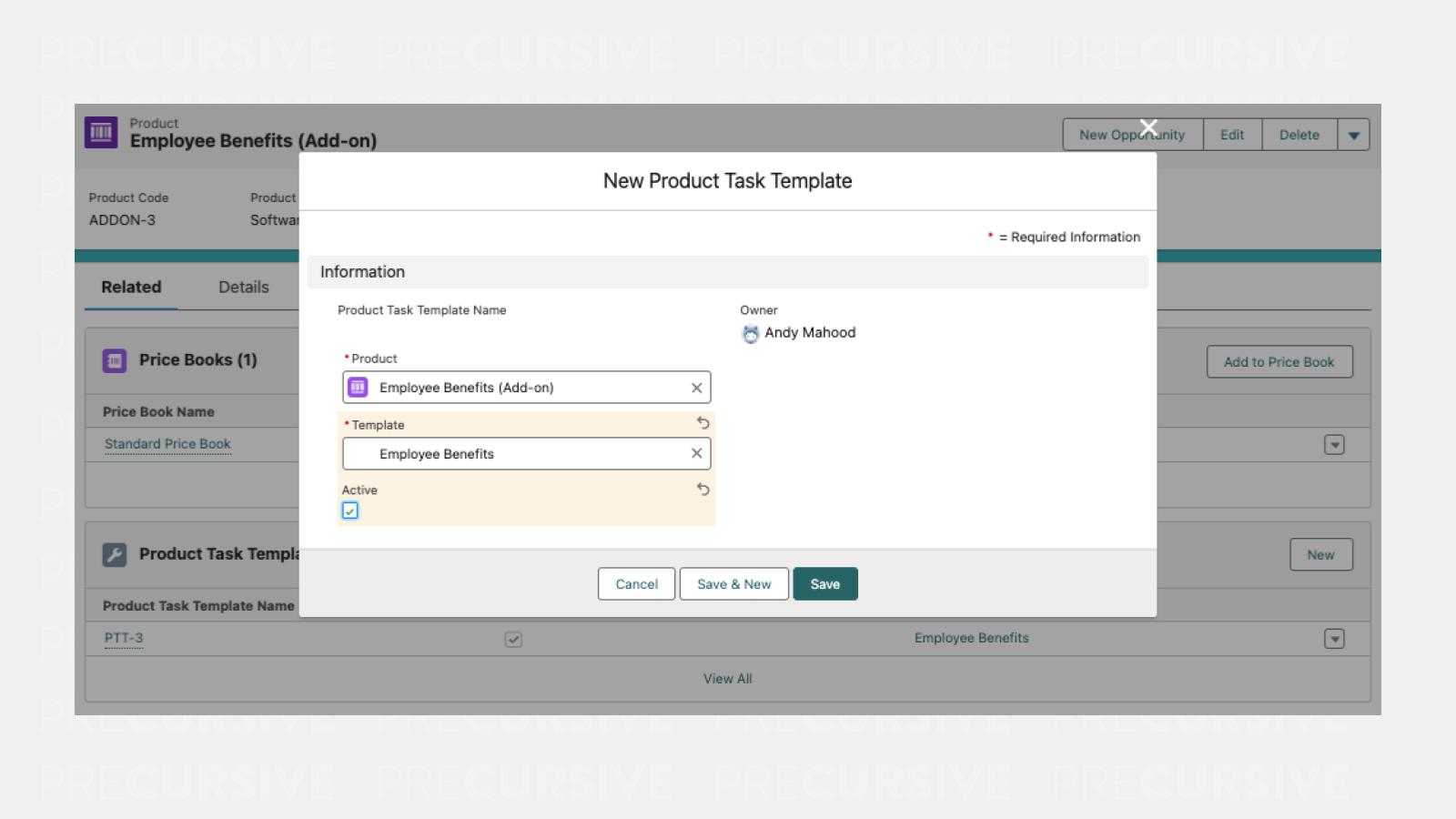
NB: This step requires some changes to Page Layouts - add a Related tab with the following fields:
When using multiple Task Templates across various Products, they can be linked together by defining Parent and Children Tasks (see Task Templates to learn more). You may want to define a Product as your ‘Standard Implementation’ which includes Tasks relevant to every implementation your company delivers (to use a sandwich analogy, this would be the bread), then create Add-on Products which can slot seamlessly into the structure of the ‘Standard Implementation’ (to continue with the analogy, the Add-ons would be the sandwich filling).
3. Create Projects with Project Budgets from an Opportunity
To help you automate the Project creation Precursive comes with a Flow Action called “Create Project Budget Structure”. This action will use the information provided on the Products to determine the Phases and Budgets to be created. Depending on the Product setup, this may result in a single Budget or multiple Budgets created across recurring periods.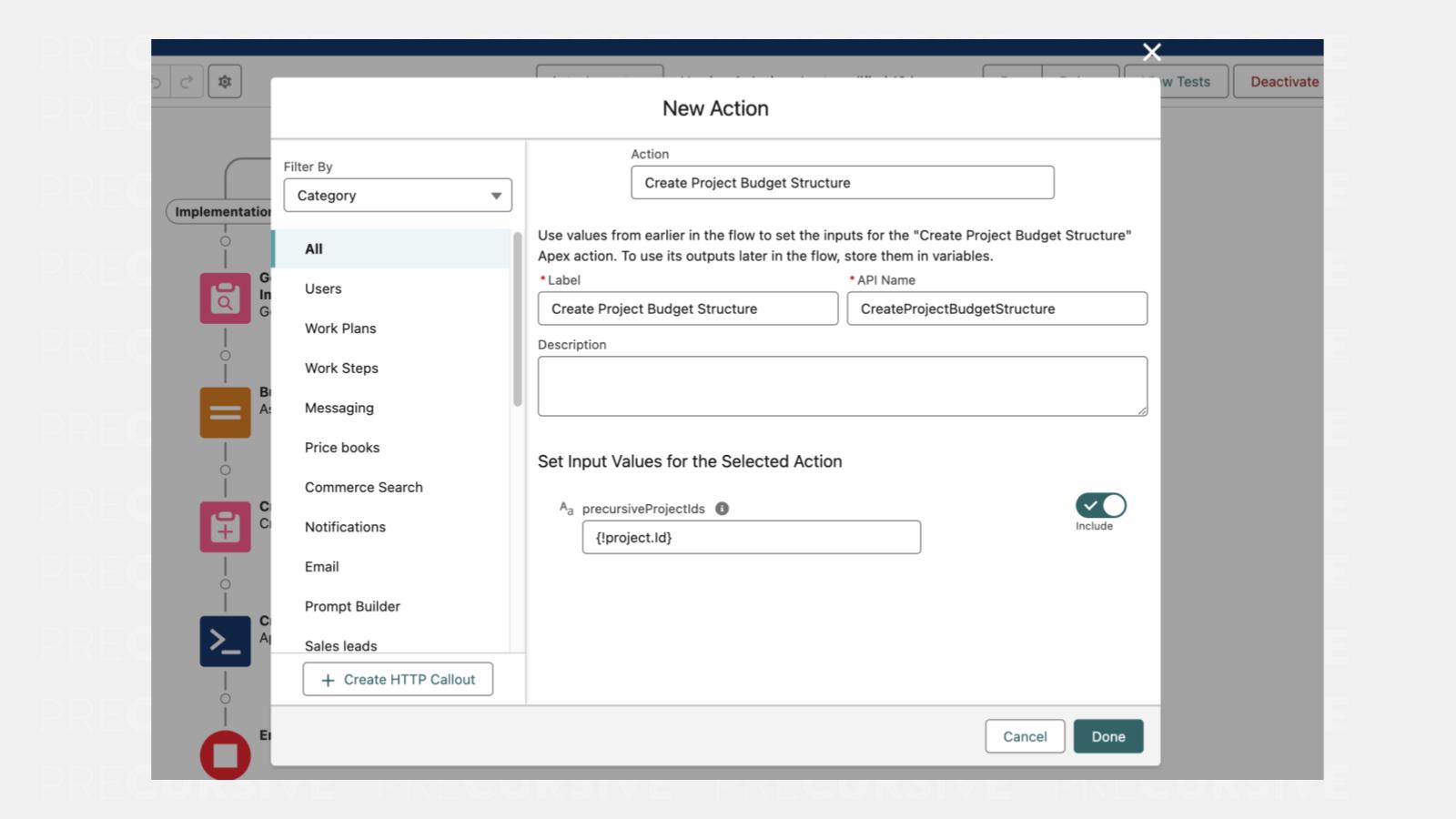
Using the "Flow Action": Create Project Budget Structure and providing the Project, the automation will create the Phases based on the configuration defined in the Products (Group Phases By), and associate the Products’ budgets and Templates to the Project.


