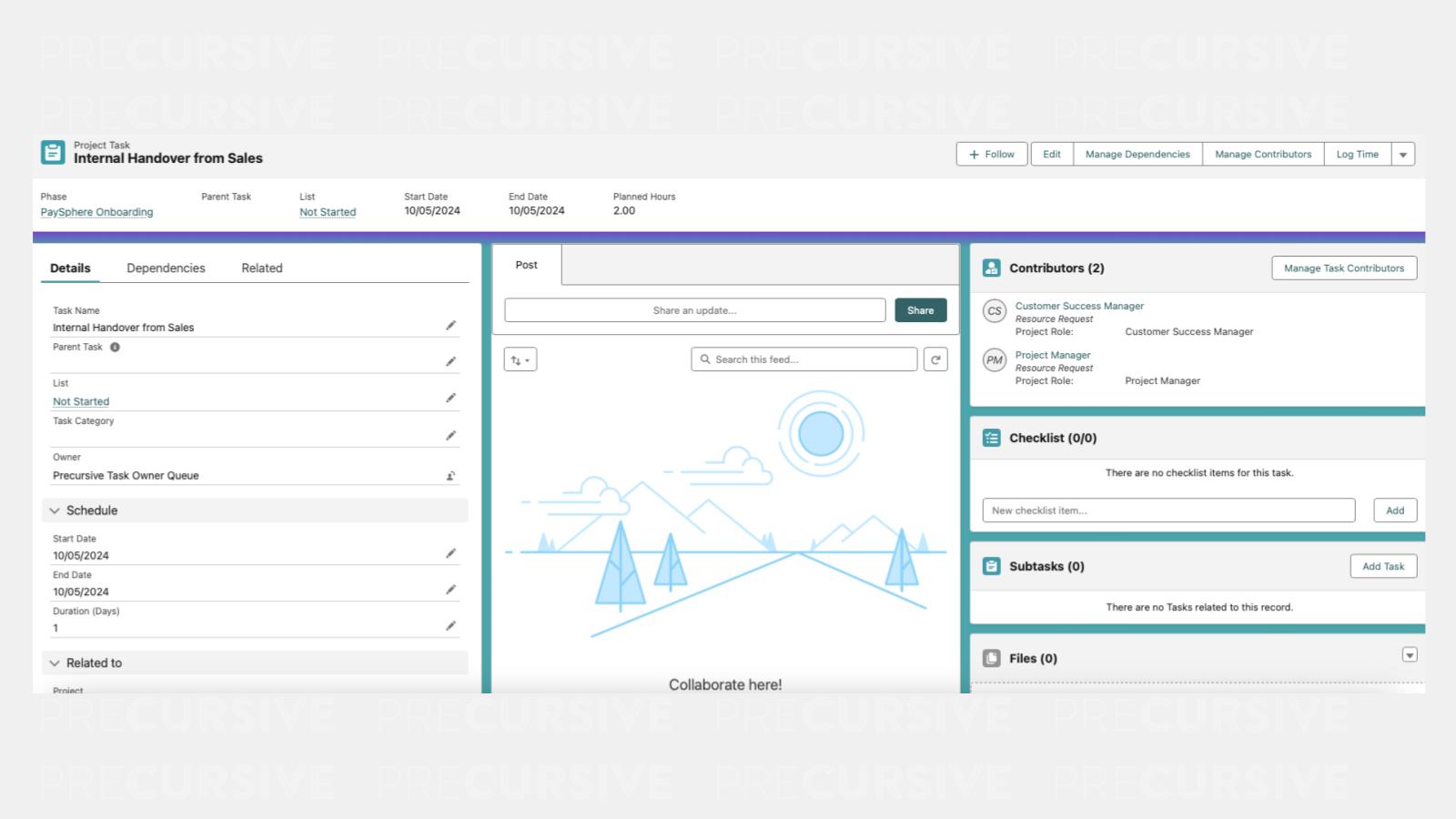
Project Tasks List Views
Project Tasks List View is the primary view to work on tasks across multiple projects at once. Examples of List Views you can create are My Tasks, My Overdue Tasks, All Tasks for a Specific Project.
In the Project Tasks tab, you can ✅:
- Create your own List Views to align with your requirements
- Share List Views to colleagues
- Pin a List View so that it becomes your default View when you open the Project Tasks tab
- Split View to make it easy to look at your own tasks across multiple projects
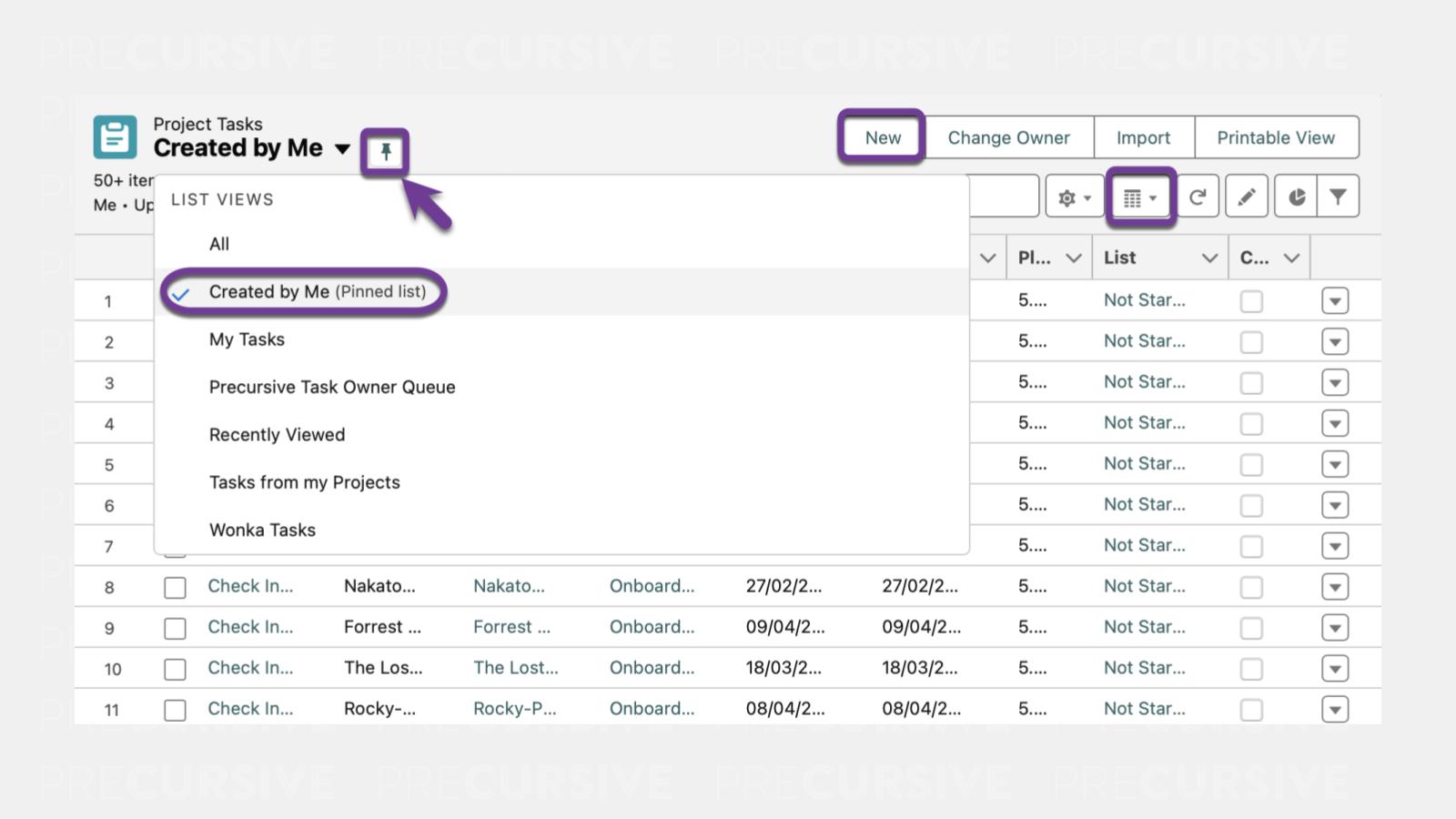
NOTE: If these List Views are not visible, you can create your own.
Split View
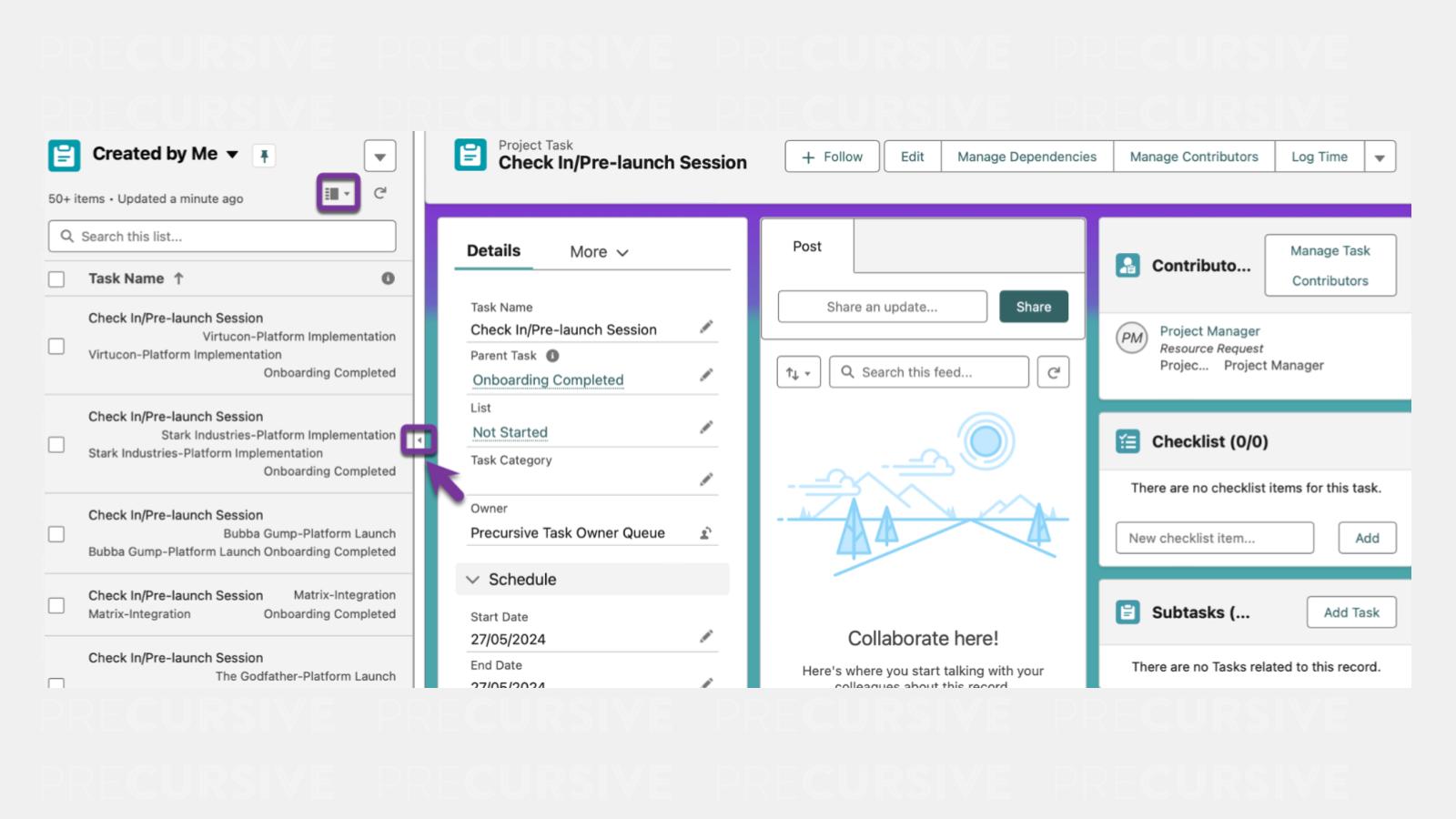
Split View allows you to see a List View and Record side-by-side. This negates the need to go back and forth between a List and Records.
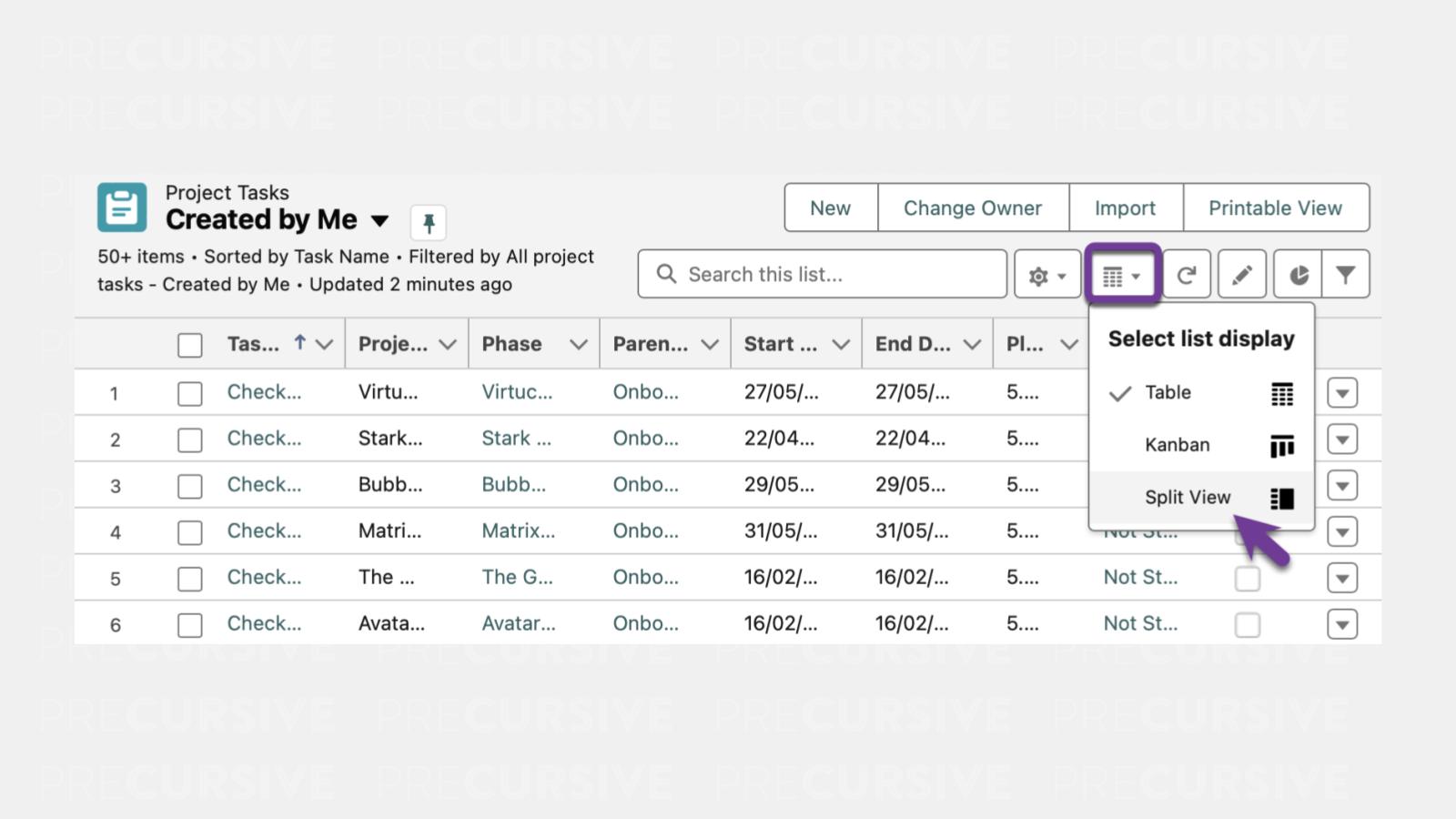
To access Split View, select that option from the 'Display As' dropdown menu.
Once in Split View, you can open a Record to see it next to your List. You can collapse the List View by clicking the arrow, and you can expand the List again by pressing the arrow facing the opposite direction.
Project Task Record Page
In the Project Tasks tab, you can access ✅:
- Task updates
- Checklist items
- Subtasks
- Attached files
- Task Contributors
- Task Dependencies