About
You can Navigate 'My Precursive' to submit your holiday requests with a couple of clicks. Your request will go to the person who approves them and you will get an email notification when that's approved.
How to submit a holiday request
- Navigate to 'My Precursive'
- Click the 'New Request' button on the Holidays component
- Choose your holiday code (the options here will vary from business to business)
- Fill in the details: hours per day, start and end date of your holiday
- Click 'Submit'
Your annual leave allowance will be automatically adjusted once your request is approved.
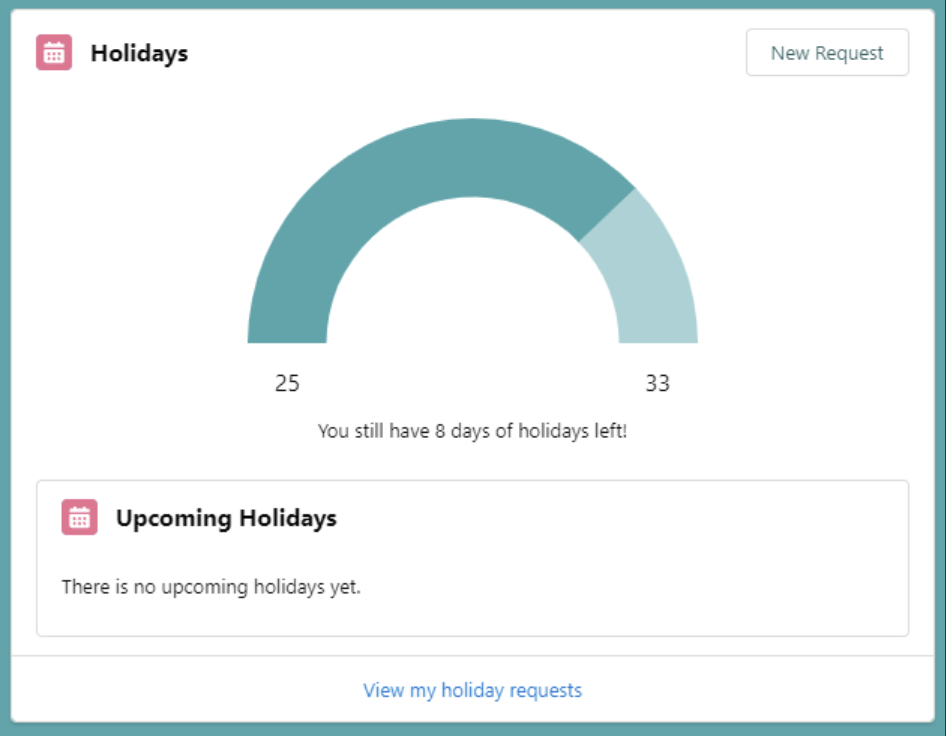
❗Note - If you cannot find the 'Holidays' component in the 'My Precursive' tab, please speak with your Salesforce Admin or Precursive Super User to enable holiday requests❗
Recall and edit holiday requests
Once you have a Holiday Request submitted and approved it must be recalled before a change can be made.
- Navigate to the My Precursive tab
- From the Holidays component, select the Holiday from Upcoming Holidays section (if you do not see the date you are looking for choose "View my Holiday Requests")
- From the Holiday Request page choose "Recall"
❗NOTE: When the Holiday Request is recalled the Booking on the Holiday Project related to Holiday Request will be be removed❗
- Once recalled you may now adjust the Holiday Request Start Date, End Date and Hours Per Day.
- When ready remember to "Submit" the Holiday Request. The Booking on the Holiday Project will not be created until the Holiday Request is Approved.
❗Your annual leave allowance will be automatically adjusted once your request is approved.
Note: If you do not see the 'Recall' button, please speak with your Salesforce Admin to ensure the Holiday Request Lightning Page is using the 'Precursive Holiday Requests Header' component ❗
Precursive Mobile App
Submitting holiday requests on Precursive Mobile is a very simple process. Follow the steps below and you'll be able to submit your requests and see how many days of holiday remain after your request.
To submit Holidays on Precursive Mobile:
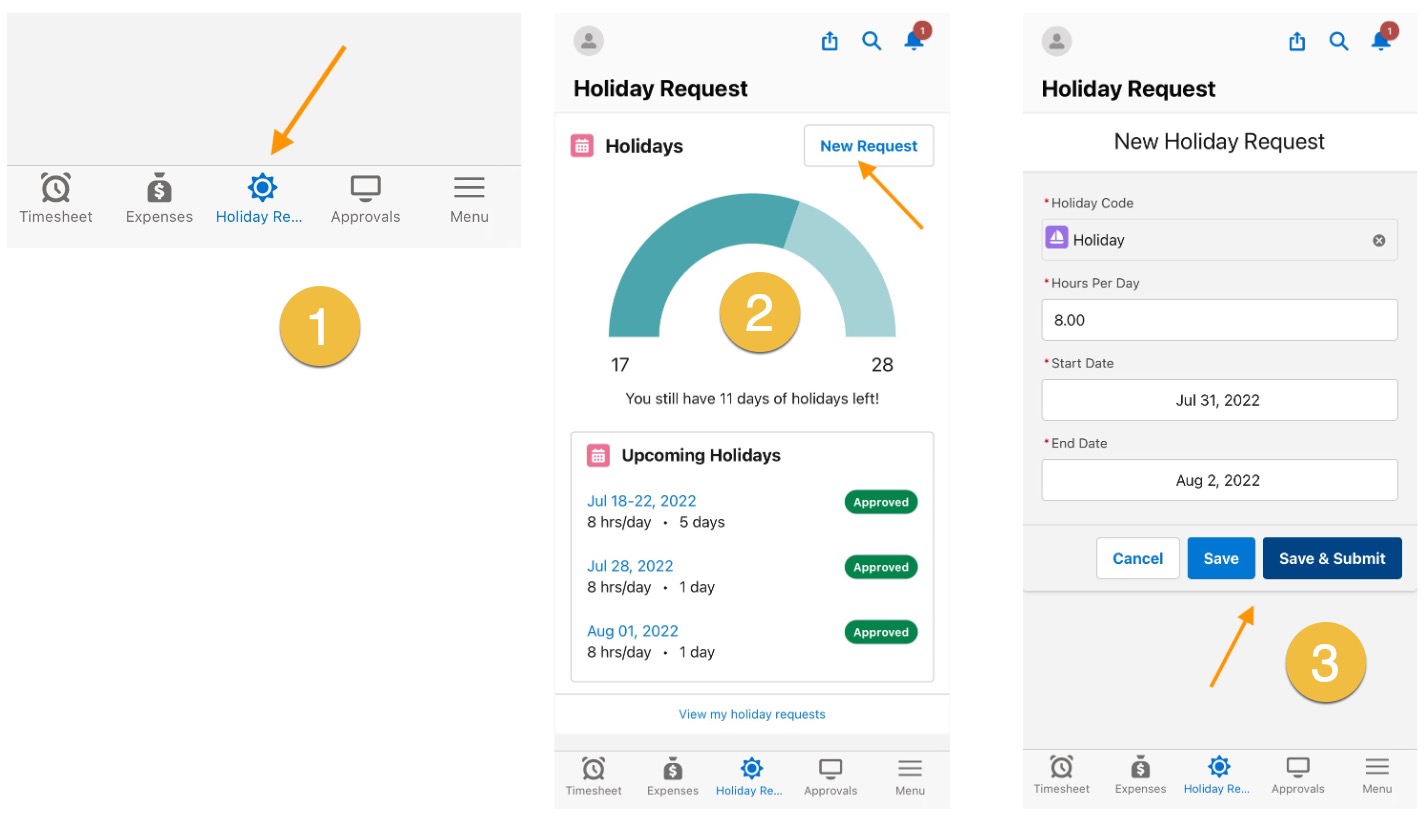
- Navigate to the 'Holiday Request' tab on the navigation bar. There you will see how many holidays you have left and a list of your upcoming holidays.
- To submit a new holiday request, hit the 'New Request' button in the upper right corner.
- In the pop-up window add the 'Holiday Code', the 'Hours per Day' you want to take off, 'Start & End Date' of your vacation period and hit 'Save' or 'Save & Submit' if you're ready to submit your request.
The Request will display on the list now and there you can check its status. That will display as 'Submitted' until your request is either 'Approved' or 'Rejected'.
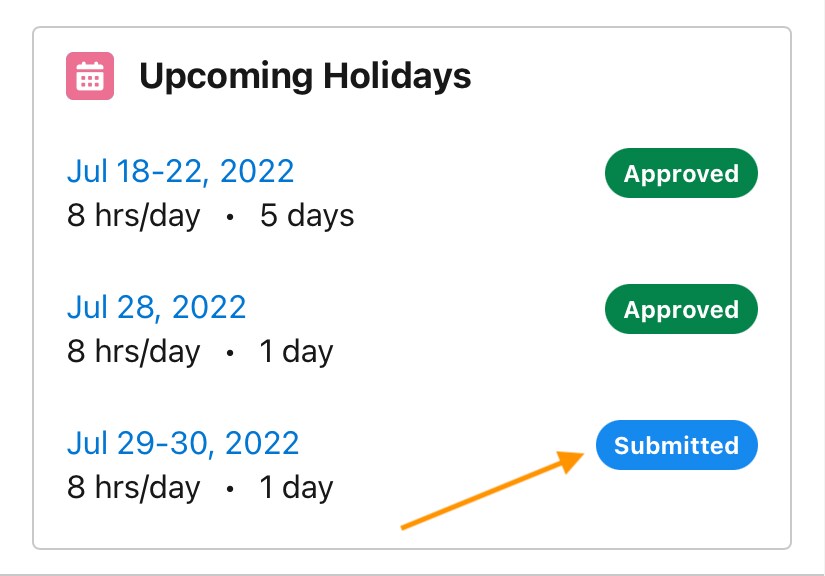
To
recall your holiday request, tap any holiday on your 'Upcoming Holidays' list and hit 'Recall' button at the right upper corner of the screen.
Related Resources
Navigate 'My Precursive'About Approvals

