With this view you can ✅:
-
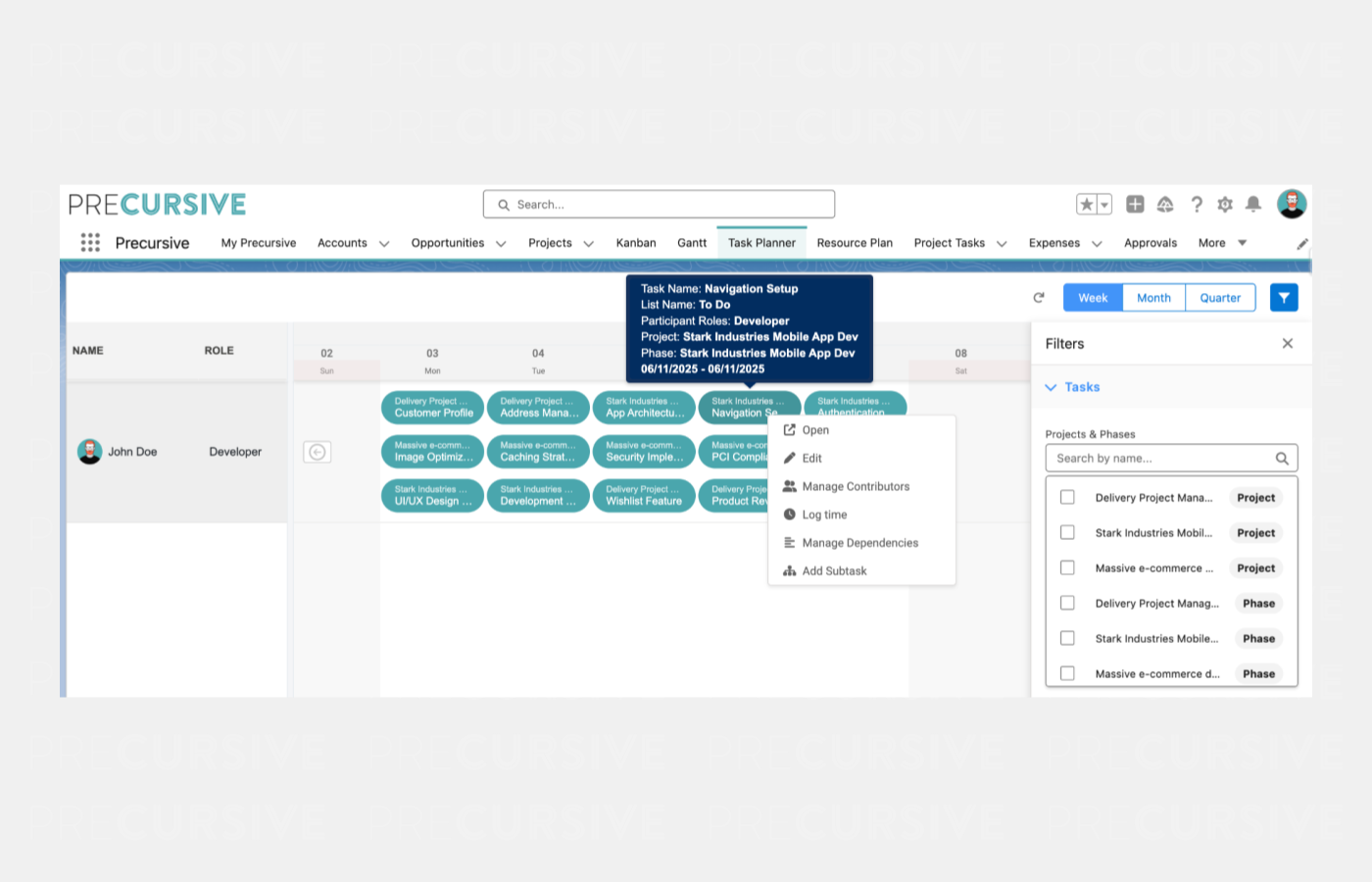
View all assigned Tasks in a weekly timeline layout
-
Drag and drop Tasks to reschedule or change duration
-
Hover over a Task to see details such as Project, Phase, Role, and Start/End Dates
-
Right-click a Task to open the context menu and perform actions:
-
Open
-
Edit
-
Manage Contributors
-
Log Time
-
Manage Dependencies
-
Add Subtask
-
Filter your view by Project or Phase to focus on specific areas
-
Zoom between Week, Month, and Quarter views for different time horizons
NOTE: The Task Planner only shows Tasks where you are an active Contributor.
Accessing Task Planner
You can access Task Planner from the Task Planner Primary Tab in the Precursive navigation bar.
The Task Planner component can be embedded on the Home page or other internal pages if required.
Navigating in Task Planner
The Task Planner timeline includes controls to help you view and navigate Tasks efficiently:
-
Refresh the view to load the latest data
-
Zoom In / Out or switch between Week, Month, and Quarter views
-
Filter by Project or Phase
-
Return to Today to quickly refocus on the current week


