Projects in Precursive display information about the Project Financials. The displayed name for this platform feature is customizable, but is often called:
Available from the Project, and Phase level, the tab appears like this:
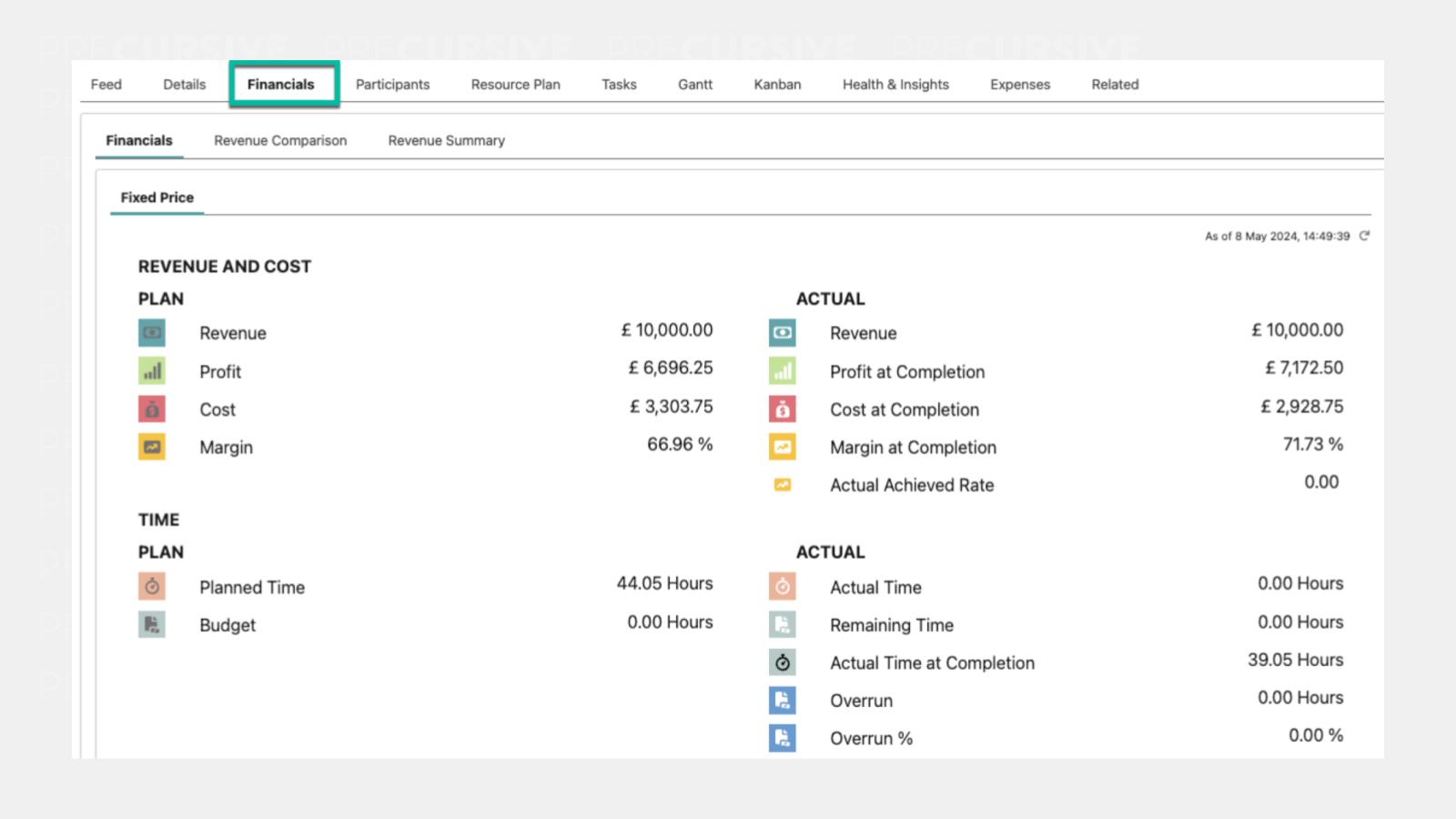
Project Budget Values display key budget information about a project, e.g. cost, revenue. These values can be edited to change the labels, icons, and custom values by editing the Lightning Page.
To do that, navigate to a Project, Phase or Participant record, click on the gear icon on the top right side of your Salesforce org and click 'Edit Page'.
From here you can edit the Lightning Page and
add new tabs to the page.
For example, to add a 'Related' tab with the 'Related Lists' component, you can:
- Scroll to the bottom of the page where you can find the component with your Record Details and Budget Information and click on it
- On the column on right-hand side, you can add a new tab and select the 'Related' Label
- Select that tab from the middle of the screen and from the column on the left-hand side search for 'Related Lists' and drag that component into the tab
- Click 'Save'
Note - if no related objects have been previously added to the Page Layout, you will receive an error when dragging the 'Related Lists' component into the page. Before completing this step then, you have to navigate to the Object Manager > search 'Phase' / 'Precursive Project' > Page Layout > edit Page Layouts to add the relevant Related Lists.
From here you can also
customize the Financials
tab layout. To do that, click on the Financials tab. In this tab, you can:
- Edit Titles: click on the row you want to edit and update the ‘Title Left’ and/or ‘Title Right’ depending on which one you want to change
- Edit Labels: click on a budget metric row and edit the details for the left and right column in the settings pane on the right-hand side
- Edit Field Names (you can change the field this information is pulled from by adding the correct API name. You can find the API name in the Object Manager: search for the correct object, e.g. Phase, > Fields & Relationships > click on the relevant field to visualize its API name)
- Unit (Currency, Hours, Days)
- Add up to 25 components in total
Once you're done with the changes, make sure activate the page for the App, Record Type and Profile remembering that the record type of the currently edited page need to match with the record type you assign and the profiles that should have access to it.
Related Resources


