Inline Dependency Editing in Gantt
Highlights
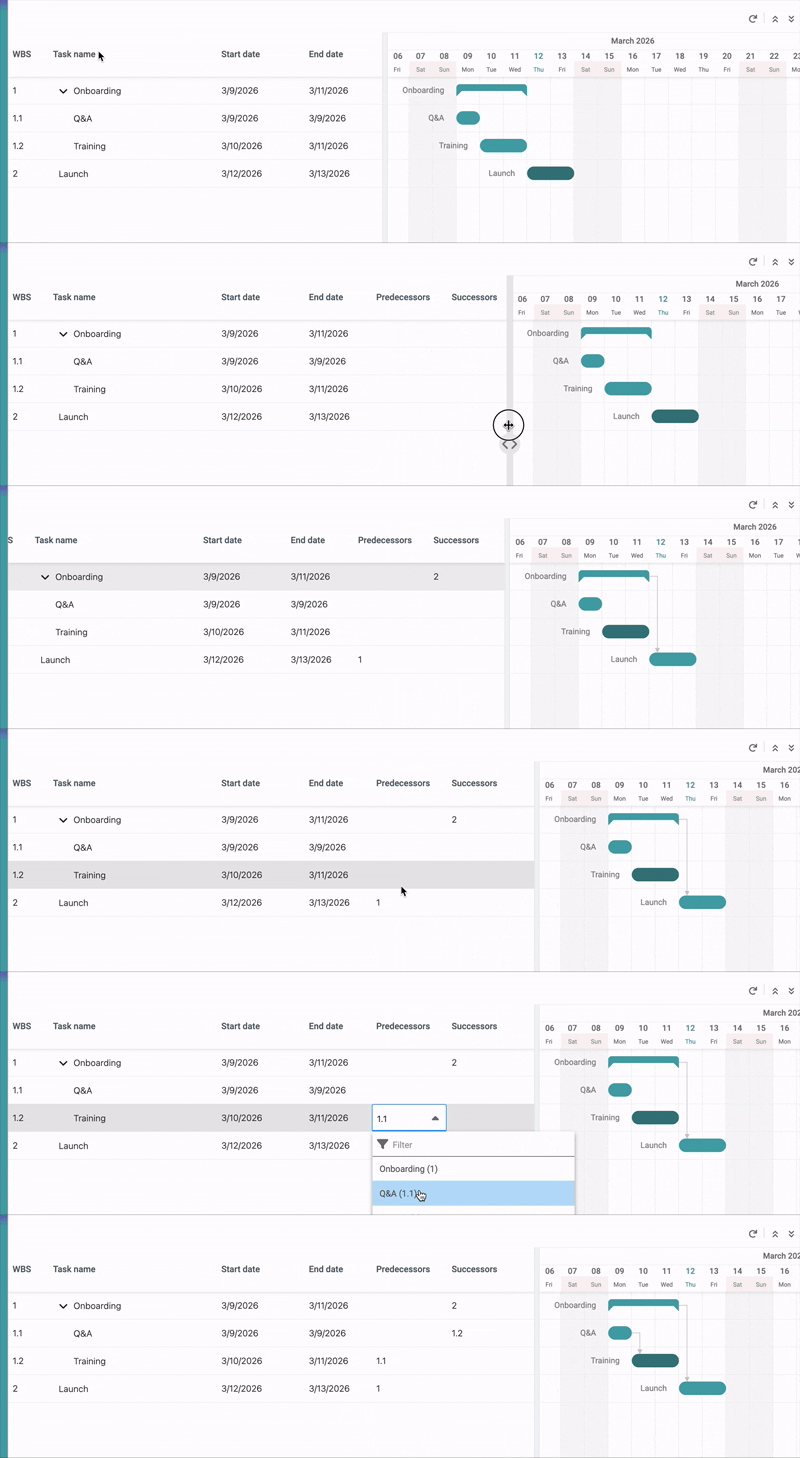
Edit task predecessors and successors directly in the Gantt grid using WBS keys, without opening individual task records - making project planning faster and more intuitive. Learn more about Gantt.
What Changed
The Gantt view now includes Predecessor and Successor columns that allow users to create, update, and remove task dependencies inline. Dependencies are entered using WBS (Work Breakdown Structure) number keys. The columns are hidden by default and can be toggled on via the column header context menu, with visibility preferences saved in cache across sessions.
How It Works
- Right-click the Gantt column header, select Columns, and enable Predecessor and/or Successor columns
- Column visibility is saved in cache - your preference persists across page refreshes
- Enter a WBS key in the Predecessor or Successor cell and press Enter to create a dependency - Lead/Lag defaults to 1 day if not specified
- Include Lead/Lag alongside the WBS key if needed (e.g. 2+1 for a one-day lag after task 2)
- Clear a cell to remove an existing dependency
- Hover over a dependency cell to see a tooltip showing the WBS key and task name (e.g. 1: Kick-Off)
- If a WBS key or format is invalid, an inline tooltip explains the error
Enablement Guidance
No manual steps are required. Each user can enable that ability by following the steps listed above.
Deeper Region Hierarchies & Team/Region Inheritance
Highlights
Build up to five levels of Region structure and automatically inherit Region assignments from Projects to Phases, reducing manual setup when creating new Phases. Learn more about Teams and Regions.
What Changed
Region hierarchies previously supported a maximum of two levels. The limit has been increased to five levels, allowing structures such as Global > EMEA > DACH > Germany > Bayern. Access inheritance continues to work as before - parent Regions receive visibility into all records belonging to their children across the full depth of the hierarchy.
Additionally, when creating a new Phase, the Team and Region fields are now pre-populated based on the values set on the parent Project. Users can override or clear these values during Phase creation - the pre-population is a default, not an enforced assignment.
How It Works
- Create or edit a Region record - you can now select a Parent Region up to five levels deep
- Salesforce validates the hierarchy depth on save and displays an error if the selection would exceed five levels
- Parent Regions automatically inherit access to all records from their children across the full hierarchy
Enablement Guidance
No manual steps are required for the inheritance behaviour - it applies automatically after upgrade
Improved Insight & Health Rating Creation from Phases
Highlights
Creating Insights and Health Ratings from a Phase now pre-populates Project and Phase fields automatically and keeps the Phase record visible in the background - making it clearer which Phase the record is being created for.
What Changed
Previously, opening the new Insight or Health Rating modal from a Phase did not display the Phase record in the background, making context unclear. A new custom "New Insight" button has been added to the Phase related list, replacing the standard Salesforce "New" button. The existing "Add Project Health" button for Health Ratings has been updated in the same way. Both buttons now pre-populate the Project and Phase fields and preserve the Phase record as background context behind the modal.
How It Works
- Navigate to a Phase record and open the Insights related list
- Click the custom "New Insight" button - the modal opens with Project and Phase pre-populated, and the Phase record remains visible in the background
- The same behaviour applies when creating a Health Rating from a Phase using the "Add Project Health" button
Enablement Guidance
This manual config is not mandatory - everything is working in the same way as in previous versions. If you would like to change the standard Salesforce button and replace it with the new, custom one, follow steps below:
- Go to Setup > Object Manager > Phase (preempt__Phase__c)
- Open Page Layouts and select the Phase layout in use in your org
- Scroll to the Insights related list and click the wrench icon to edit it
- In the related list buttons section, remove the standard "New" button
- Add the custom "New" button (labelled "New" - sourced from the Insight object's custom web links)
- Save the layout
- Repeat for any additional Phase layouts in use
- If your Lightning Pages with Related Lists added for insights are customized, then you can change the new button there too
Data Model
No changes in the Data Model in 2.18 release.
Review all Release Notes.


