About
If your Precursive OBX version is 18.* or lower, after upgrading to the latest version please make sure you follow the steps below. Please see
How to upgrade to the latest Precursive OBX version? for more information.
Layout changes
These changes are related to Layouts and their changes. From some of them, we just cleared deprecated and unused fields, to some of them we’ve added new tables or fields to make them easier to access for you. Please review if the following changes are applied to your org and, if not, follow the steps to make them.
Board Insights
On the Precursive Board object, we’ve added a Board Insights table to the Related tab. If the list of Board Insights does not appear there, it has to be manually added:
- Go to Setup >> Object Manager and click on Precursive Board
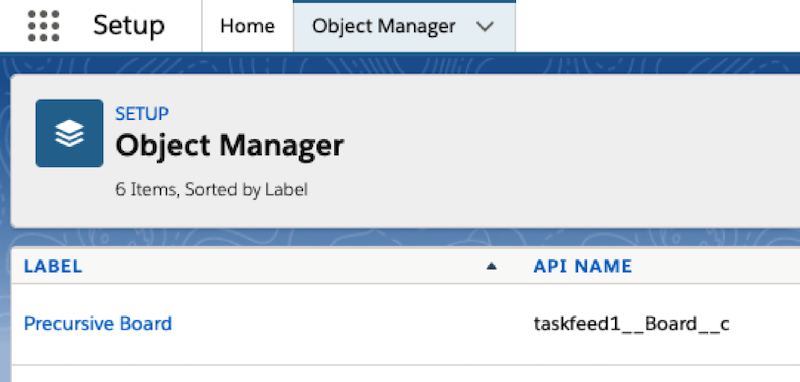
- On the left side, please go to Page Layouts and select Taskfeed Board Layout (and/or the custom Layouts that your org created)
- Scroll down to find Related Lists, and drag and drop Board Insights from the top there

- If you want to adjust the list of columns visible there, just click on the wrench icon and adjust them, here is our recommendation that fits all Board Insight types
If you don't see Precursive Board Health on the Related tab, please repeat these steps and add Precursive Board Health to Layout.
Milestone Progress
For Milestone Progress we found out that this object can have two Layouts in it. One of them - Precursive Milestone Progress Layout - should be removed and the other one Milestone Progress Layout should be set up as default one.
Please follow these steps to make sure that only one Layout is linked there:
- Go to Setup >> Object Manager and click on the Milestone Progress object
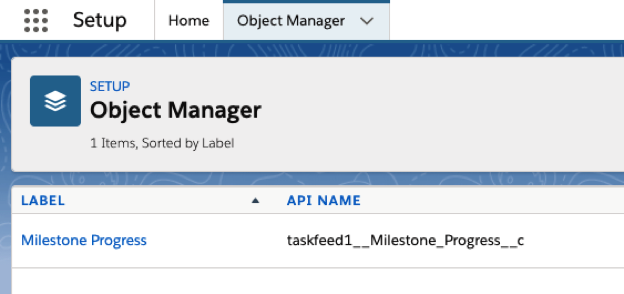
- On the left side, please go to Page Layouts and make sure that only Milestone Progress Layout is there. In case there are two please follow the next steps.
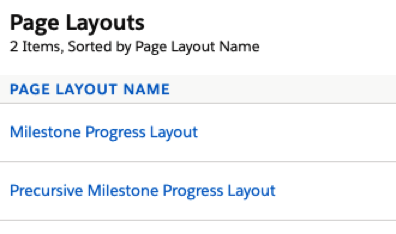
- Click on the drop-down icon next to Precursive Milestone Progress Layout and select Delete.

- Once clicked, confirm this operation by clicking Delete on the modal.
- When confirmed, you will be asked to replace deleted Page Layout with another one, make sure that Milestone Progress Layout is selected and click on Replace.
List
With OBX 19.0 release, we decided to clean up fields on List layout so that all ***Deprecated*** fields should not be visible. To make sure that they are not visible, please follow these steps:
- Go to Setup >> Object Manager and click on List (taskfeed1__List__c) object
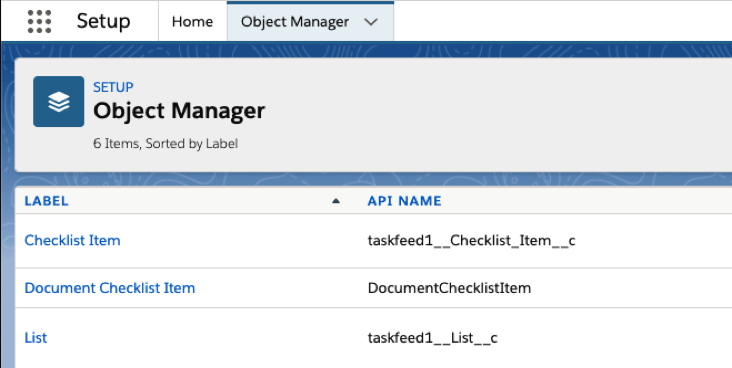
- On the left side, please go to Page Layouts and select Taskfeed List Layout (and/or the custom Layouts that your org created)
- Review fields that are listed below and make sure that there are no ***Deprecated*** fields selected.
If you have Customer Permission Sets and Profiles
These changes are related to all Permission Sets that are assigned to OBX Users. We did these changes for custom Permission Sets that are coming together with our package but it would be good to just make sure that following changes are applied for our custom Permission Sets and Permission Sets that you have created and crafted for your business purposes.
Visualforce Page Access
Make sure that access to the following Visualforce pages is granted to all custom Permission Sets that are used for users who are working with OBX:
- taskfeed1.ComponentUsage
- taskfeed1.SessionId
Steps:
- Go to Setup >> Permission Sets
- For each custom Permission Set that is used for OBX users
- Go to Visualforce Pages Access
- Make sure that taskfeed1.ComponentUsage and taskfeed1.SessionId are listed there
- If not, click on Edit, move these using Add and click Save (https://help.salesforce.com/articleView?id=sf.perm_sets_setting_visualforce_access.htm&type=5)
Custom Settings Definitions
Make sure that the following Custom Settings Definitions are listed in each Permission Set that is related to OBX Users:
- taskfeed1.Precursive OBX Settings
- taskfeed1.Precursive OBX User Settings
Steps:
- Go to Setup >> Permission Sets
- For each custom Permission Set that is used for OBX users
- Go to Custom Settings Definitions
- Make sure that taskfeed1.Precursive OBX Settings and taskfeed1.Precursive OBX User Settings are listed there
- If not, click on Edit, move these using Add and click Save (https://help.salesforce.com/articleView?id=sf.cs_grant_permission.htm&type=5)
Related Resources
How to upgrade to the latest Precursive OBX version?

