Task Planner
Highlights
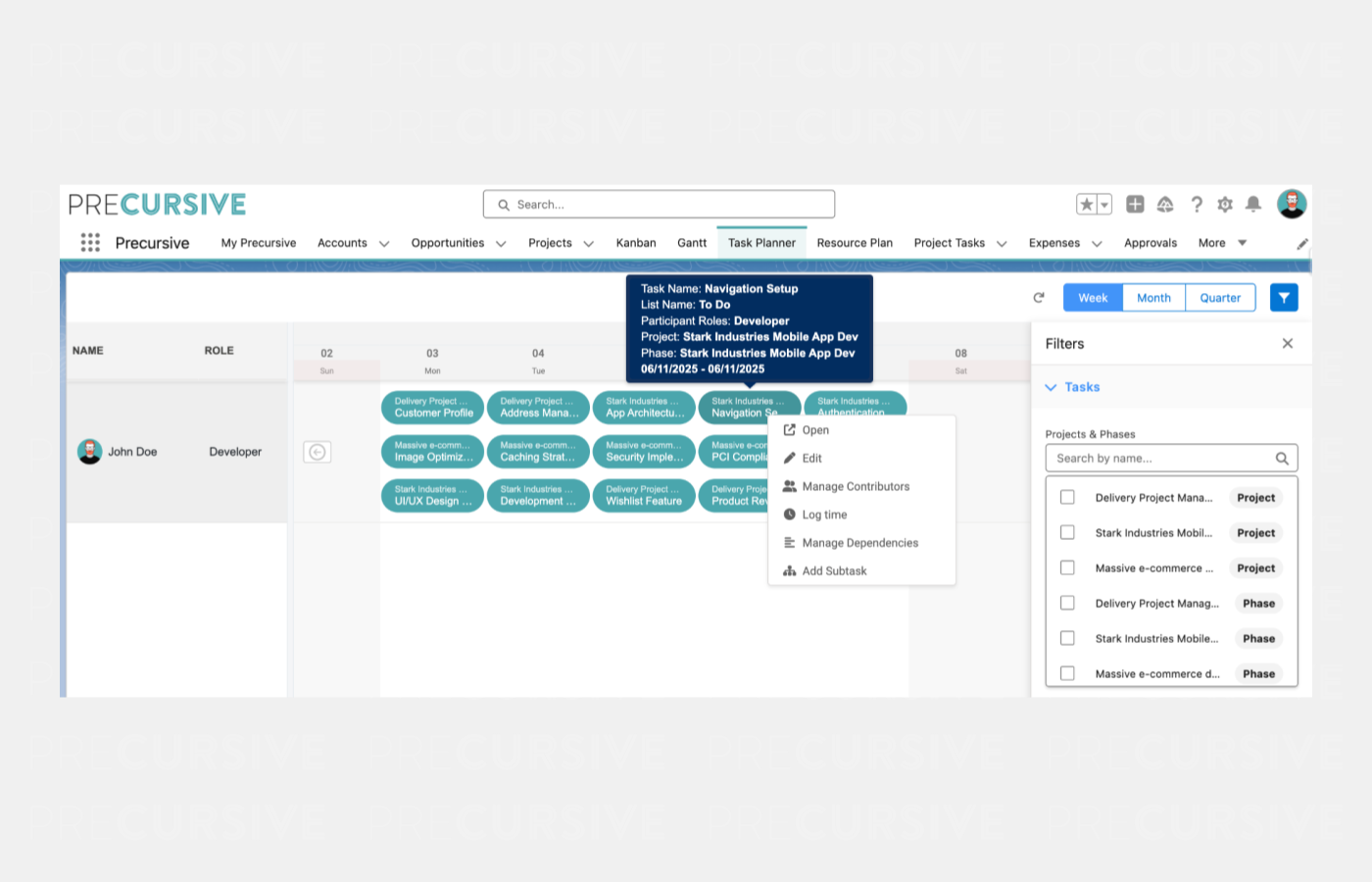
Task Planner – Individual View — See all your assigned Tasks across Projects in one place. Plan your week, drag and drop to adjust timing, and log time directly from one place. Managing Tasks Across Different Views (Kanban, Gantt & Task Planner) is easier.
What Changed
- Introduced a new Task Planner component specifically designed for Individual Contributors.
- Provides a weekly/monthly/quarterly timeline view showing only Tasks assigned to the current user.
- Tasks can be rescheduled via drag-and-drop or by expanding/contracting Task bars to change duration.
- Filter panel allows filtering by Project and Phase.
- Task cards display Project-Phase name and Task Name, with colour derived from Task Category.
- Context menu on Tasks provides quick access to necessary operations allowing quick adjustments.
How It Works
- Navigate to the Task Planner tab (once enabled by your administrator).
- The Task Planner displays all your assigned Tasks in a weekly timeline layout.
- Use the zoom controls (Week/Month/Quarter) to adjust your planning view.
- Drag Tasks horizontally to reschedule them, or expand/contract Task bars to change duration.
- Click the filter icon to open the side panel and filter by specific Projects or Phases.
- Right-click on any Task to access the context menu for quick actions.
- Hover over a Task card to see detailed tooltip information.
Enablement Guidance
To enable Task Planner:
- The Task Planner tab is created but not added to the application metadata by default.
- Administrators must manually add the Task Planner tab to the application navigation.
- The Task Planner component can also be embedded on the Home page (not embedded by default).
Simplified Project Access Level Validation for specific Phase setup
Highlights
Project Access Level Validation — Simplified Time Entry for “Allow time entry for all Resources” Phases — no Participant assignment needed.
What Changed
- PAL (Participant Access Level) validation is now bypassed for Phases with "Allow time entry for all Resources" enabled.
- Users can add Timesheet rows for Projects/Phases they can access even without an existing Participant assignment.
- Expense submission follows the same logic, allowing expenses on "Allow time entry for all Resources" Phases.
- The "Allow time entry for all Resources" Phase setting now takes precedence over individual Participant PAL settings.
How It Works
- When a Phase has "Allow time entry for all Resources" checkbox enabled:
- Any user who can access the Phase (via OWD or Sharing Rules) can log time.
- No Participant record is required.
- No PAL with "Submit Time" permission is required.
- In the Timesheet "Add Row" modal, these Phases will appear in the selection list.
- The same applies to Expense submission - users can submit expenses without explicit PAL permissions.
- If a Participant exists but lacks "Submit Time" permission, the Phase-level "Allow time entry for all Resources" setting takes precedence.
Enablement Guidance
No configuration required - this enhancement is automatically active after upgrade.
Review your Phases:
- Identify Phases that should allow time entry from all Resources.
- Ensure "Allow time entry for all Resources" checkbox is enabled on relevant Phases.
Consider Org-Wide Defaults and Sharing Rules:
- With Private OWD, users still need Phase visibility via Sharing Rules to access these Phases.
- With Public Read-Only OWD, all users will be able to log time on marked Phases.
Performance improvements for complex Projects
Highlights
Performance for Complex Projects — Working with large projects is now faster and more reliable — from assigning and updating tasks to adding timesheet rows and logging time. Imports, updates, and reschedules all run smoothly
What Changed
- Add Row on MyPrecursive
- Project dropdown now shows top 25 most recently viewed Projects by default (filtered by "Allow time entry outside of Bookings" or "Phase is Public" and Active status).
- Search activates after 3+ characters with debounce for optimised performance.
- Phase, Role, Task Category, and Task dropdowns remain disabled until parent selection is made.
- Projects outside the current Timesheet date range are now discoverable via search.
- Recreate Bookings batch improvements to handle larger datasets that are impacting following processes:
- Import templates with up to 500 Tasks with 5 Contributors per Task ("Too many SOQL queries: 201" errors addressed)
- Task rescheduling for Phases with large number of Tasks ("Too many DML rows: 10001" errors addressed)
- The batch is iterating now per Participant rather than per Phase, limiting number of queries processed within a single execution
How It Works
- Add Row on MyPrecursive
- Project dropdown on Add Row is the only one with preloaded data
- The other ones are enabled and filled with data based on previous context provided (Project > Phase > Role > Task Category/Task)
- Recreate Bookings batch
- The system now processes Bookings more efficiently.
- Bookings are created reliably even for complex project structures.
- No change to expected behaviour - Tasks and Bookings are created as before, just more reliably at scale.
Enablement Guidance
No configuration required - performance improvements are automatically active after upgrade.
Existing Add Row functionality remains unchanged from a user workflow perspective.
Review all Release Notes.


