Critical Path on Gantt
Highlights
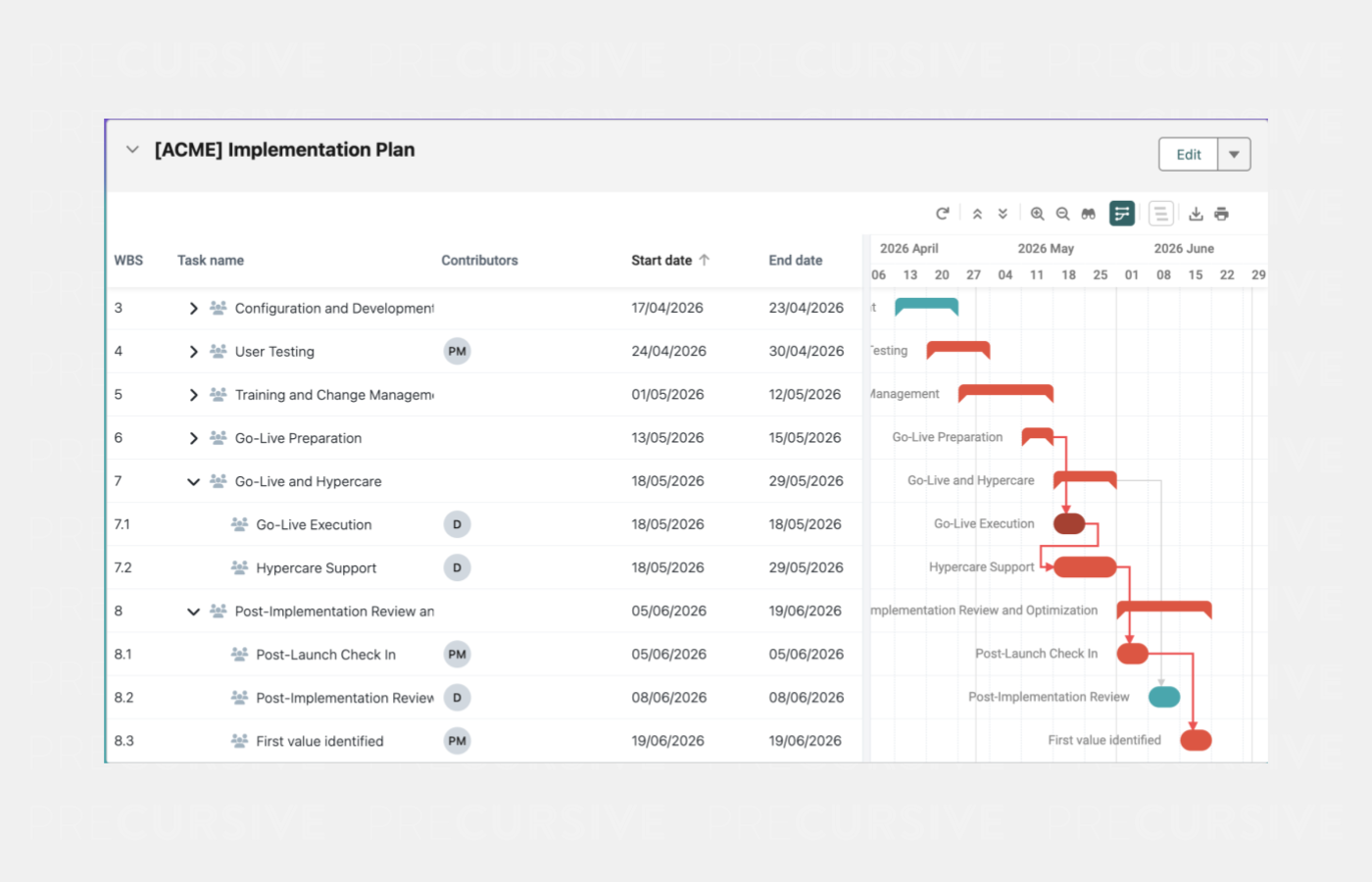
Instantly identify which Project Tasks directly impact the last one in the Phase with a new toggleable Critical Path visualization in the Gantt view - no more manually tracing Dependencies to understand schedule risk. Learn more about Gantt.
What Changed
A Critical Path toggle has been added to the Gantt toolbar. When enabled, Precursive highlights the longest sequence of dependent Project Tasks that determines the minimum Phase duration. Project Tasks that, when changed, will impact the last Phase’s Task End Date, are highlighted along with the Dependency lines between them. The Critical Path recalculates automatically when Task dates or Dependencies change. Calculations respect the org-wide work schedule configuration.
How It Works
- Open the Gantt view on any Phase with Task Dependencies configured
- Click the Critical Path icon in the Gantt toolbar (to the right of Zoom to Fit)
- Project Tasks on the Critical Path are highlighted - these are Tasks where any delay would push the Phase End Date
- Dependency lines between critical Project Tasks are also highlighted
- Modify Task dates or Dependencies - the Critical Path recalculates automatically
- Click the icon again to toggle the visualization off
Enablement Guidance
No manual steps necessary. The feature is available to all users with access to the Gantt component.
Magic Assign and Add Participant in Manage Contributor Modal
Highlights
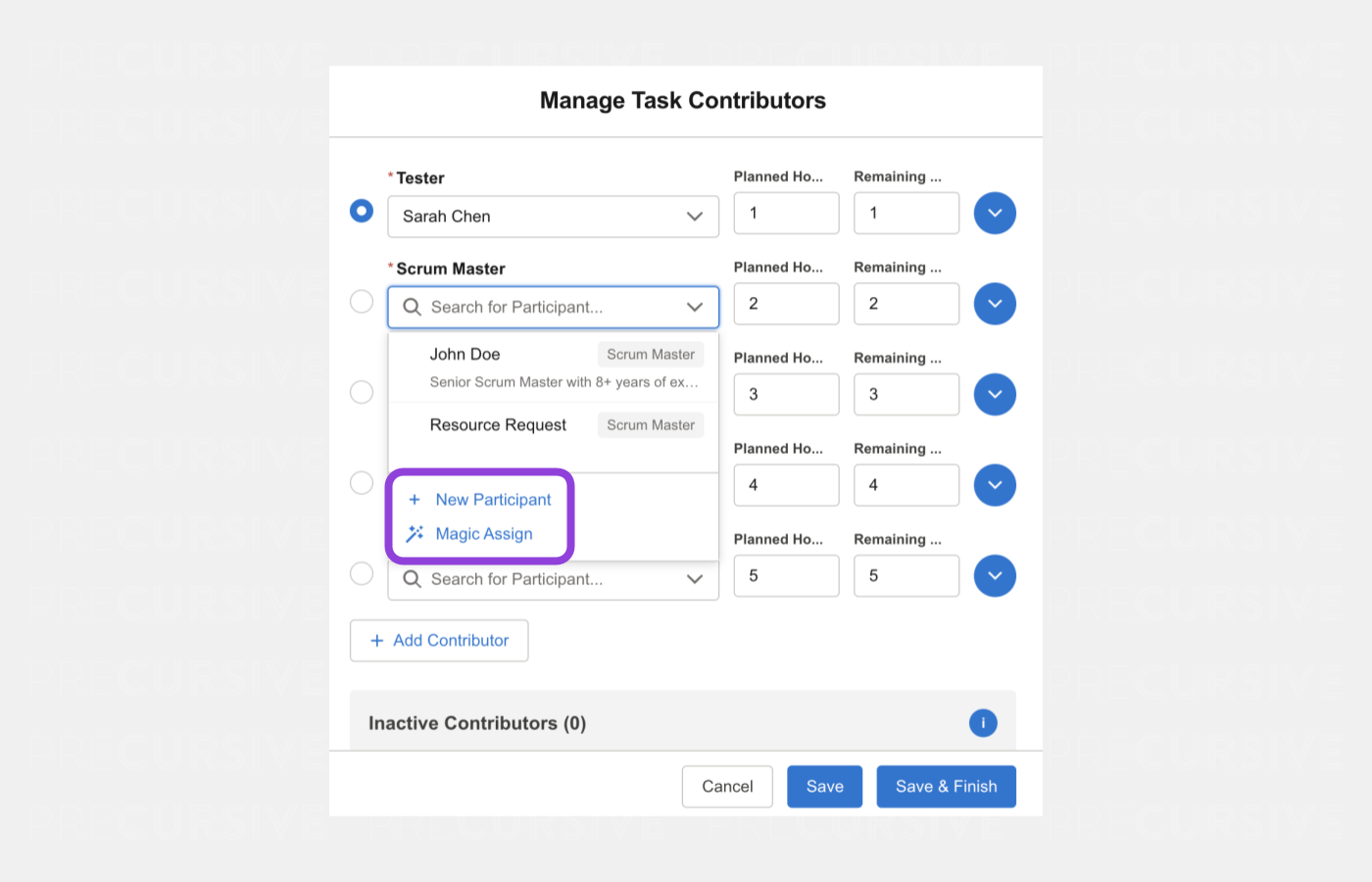
Create a Participant and access Magic Assign directly from the Manage Contributor without leaving your current workflow so in case you will spot someone missing for a particular Project Task, you can easily reassign that to someone else without additional clicks.
What Changed
Two enhancements have been added to the Manage Contributor modal. First, a Magic Assign button is now available directly within the modal, pre-filtered by the Participant Role and Task of the selected Contributor row - removing the need to exit the modal and open Magic Assign separately. When Magic Assign is closed, the Manage Contributor modal automatically refreshes to reflect the latest assignment state. Second, an Add New Participant button is now available at the bottom of the Participant search dropdown within each Contributor row. When clicked, the Add Participant modal opens on top of the Manage Contributor modal with the Role pre-filled and locked. A new Task filter has also been added to Magic Assign globally, allowing filtering of Resource suggestions by specific Project Tasks.
How It Works
Magic Assign
- Open the Manage Contributor modal from any Project Task in a Task Resourcing mode Phase
- To use Magic Assign: click the Magic Assign button - it opens pre-filtered by the Contributor row's Role and Task
- Make assignments in Magic Assign and close - the Manage Contributor modal refreshes automatically
Add Participant
- To add a new Participant: expand the Participant dropdown on any Contributor row and click Add New Participant at the bottom
- The Add Participant modal opens with Role pre-filled - complete the form and save
- The new Participant is automatically selected in the Contributor row
Enablement Guidance
No manual steps necessary. The Magic Assign button is only available in Task Resourcing mode Phases - it does not appear for Booking Resourcing mode Phases.
Project Budget Quantity Behavior
Highlights
Configure Products to automatically split Budgets per unit sold or scale effort by quantity, enabling accurate automated Project setup for services sold at variable quantities. Learn more about Project Budgets.
What Changed
A new Quantity Behavior field has been added to the Product object with three options:
- None - existing behavior - one Budget created regardless of quantity
- Per Unit - creates one Budget per unit of the Opportunity Line Item quantity, with Task Templates imported and suffixed accordingly
- Scale - creates one Budget with hours and days multiplied by quantity
A new Apex Action has been introduced to support this logic. The existing invocable method is preserved unchanged for backward compatibility.
How It Works
- None (default): existing behavior unchanged - one Budget created using the full Opportunity Line Item total price
- Per Unit: if a Product is sold with Qty = 3, three Budgets are created (e.g. Training 1, Training 2, Training 3), each with its own imported Task Template suffixed to match
- Scale: if a Product is sold with Qty = 5, one Budget is created with Hours and Days multiplied by 5
Use the new Apex Action in your Opportunity Closed Won flow to apply the new logic
Enablement Guidance
- The new field is added to the Precursive Project Budget Product Admin permission set automatically - no manual step necessary
- Assign the Precursive Project Budget Product Admin permission set to admins who need to configure this field
- Add the quantityBehavior__c field to Product records for any Products where you want to use Per Unit or Scale behavior
- Update your Opportunity Closed Won Flow to use the new Apex Action Create Project Budget Structure - The existing action continues to work as before
- Existing Product configurations without Quantity Behavior set will behave exactly as before (None behavior)
Data Model
Below there are data model changes listed that enabled features described above.
New Fields
|
Object Label
|
Field Label
|
Field API Name
|
Field Type
|
Description
|
|
TemplateImportHistory__c
|
Suffix
|
suffix__c
|
Text(10)
|
Suffix appended to all Task names during template import. Used by Per Unit Quantity Behavior to distinguish Tasks across Budget units (e.g. " 1", " 2").
|
|
Product2
|
Quantity Behavior
|
quantityBehavior__c
|
Picklist (Per Unit, Scale)
|
Determines how the Opportunity Line Item quantity is applied when creating Project Budgets
|
Review all Release Notes.


